
Tag: Python

Execution Loops

Execution Loops

I like to divide execution loops into two main categories: Synchronous loops and Asynchronous loops. The first one does its tasks based on some sort of clock (or clocks) at a fixed sampling period (or periods). The second type performs its tasks based on events that are triggered by other parts of the program, or by external devices integrated into the program. If you’re using your mouse wheel to scroll down this web page, the wheel motion is an asynchronous event triggered by the mouse device that notifies the main application that something happened and that the wheel position data will be sent. The main application uses that data and then takes care of moving the page up.

Moving forward, let’s focus on synchronous execution loops. The most general code layout contains a group of tasks that are performed before the program starts the execution loop, the loop itself, and tasks that are performed after the loop finishes running. If DAQ devices are being used for instance, a typical task before starting the loop is to look for (and do some checks on) the DAQ device and then connect to it. After the loop finishes, properly disconnecting from the DAQ device is a typical task done at that time. Other tasks, such as loading and saving data, starting and stopping other processes or interfaces, also fall into the before and after categories.

The simplest possible code (shown below) only contains the execution loop and would run forever until the power is cut off or someone hits “CTRL” + “C” on the keyboard. While this is sometimes all that’s needed, I prefer to add some sort of exit condition.

import time
import datetime

# Doing tasks before entry condition
print('Running forever ...')
print('Interrupt or press "CTRL"+"C" to stop.')
# Running execution loop
while True:
    # Doing computations
    for i in range(100000):
        pass
    # Doing I/O tasks
    print('I/O at', datetime.datetime.now().time())
    # Pausing for 1 second
    time.sleep(1)
Running forever ...
Interrupt or press "CTRL"+"C" to stop.
I/O at 20:22:26.737740
I/O at 20:22:27.740305
I/O at 20:22:28.743494
I/O at 20:22:29.745530
I/O at 20:22:30.747698
I/O at 20:22:31.749704
I/O at 20:22:32.752015
I/O at 20:22:33.755986
I/O at 20:22:34.758986
I/O at 20:22:35.760987
I/O at 20:22:36.763165
I/O at 20:22:37.765439
I/O at 20:22:38.770925

You should first notice that on the output above on the right, the time step is slightly over 1 second. In this case, the longer the computations take, the farther away this number will be from 1 second. While you could account for the computational time and subtract it from the sleep duration, even the corrected value tends to drift over time, loosing it’s accuracy. Let’s improve that and add an exit condition by using a clock, as shown below. It could represent for how long a test needs to run. If the code is part of a GUI (Graphical User Interface), the entry and exit conditions could be just a start and a stop buttons.

import time
import datetime
import numpy as np

# Assigning time parameters
tsample = 1  # Data sampling period (s)
tstop = 100  # Test stop time (s)
# Initializing timers and starting main clock
tprev = 0  # Previous time step
tcurr = 0  # Current time step
tstart = time.time()
# Doing tasks before entry condition
print('Running for', tstop, 'seconds ...')
# Running execution loop
while tcurr <= tstop:
    # Updating previous time and getting current time (s)
    tprev = tcurr
    tcurr = time.time() - tstart
    # Doing computations
    for i in range(100000):
        pass
    # Doing I/O tasks every `tsample` seconds
    if (np.floor(tcurr/tsample) - np.floor(tprev/tsample)) == 1:
        print(
            'I/O at', datetime.datetime.now().time(),
            '(Elapsed time = {:0.3f} s)'.format(tcurr))
# Doing tasks after exit condition
print('Done.')
Running for 100 seconds ...
I/O at 20:27:43.673925 (Elapsed time = 1.001 s)
I/O at 20:27:44.671919 (Elapsed time = 2.000 s)
I/O at 20:27:45.675318 (Elapsed time = 3.002 s)
I/O at 20:27:46.675509 (Elapsed time = 4.003 s)
I/O at 20:27:47.674825 (Elapsed time = 5.002 s)
I/O at 20:27:48.673115 (Elapsed time = 6.000 s)
I/O at 20:27:49.673116 (Elapsed time = 7.000 s)
I/O at 20:27:50.674293 (Elapsed time = 8.001 s)
I/O at 20:27:51.675247 (Elapsed time = 9.002 s)
I/O at 20:27:52.674257 (Elapsed time = 10.001 s)
I/O at 20:27:53.675288 (Elapsed time = 11.002 s)
I/O at 20:27:54.674371 (Elapsed time = 12.001 s)
I/O at 20:27:55.673409 (Elapsed time = 13.000 s)
I/O at 20:27:56.675287 (Elapsed time = 14.002 s)
I/O at 20:27:57.674133 (Elapsed time = 15.001 s)
I/O at 20:27:58.674246 (Elapsed time = 16.001 s)
I/O at 20:27:59.673134 (Elapsed time = 17.000 s)
I/O at 20:28:00.675795 (Elapsed time = 18.003 s)
I/O at 20:28:01.674195 (Elapsed time = 19.001 s)
I/O at 20:28:02.674295 (Elapsed time = 20.001 s)
I/O at 20:28:03.675202 (Elapsed time = 21.002 s)
...
I/O at 20:29:19.674898 (Elapsed time = 97.002 s)
I/O at 20:29:20.674071 (Elapsed time = 98.001 s)
I/O at 20:29:21.672220 (Elapsed time = 99.000 s)
I/O at 20:29:22.675361 (Elapsed time = 100.003 s)
Done.

Observe that after adding the sampling clock condition, the elapsed time between steps is consistently 1 second (within a couple of milliseconds, as shown above on the right). Even if you were to run the code for an indefinite amount of time, the sampling period would stay consistent. As shown in the next piece of code, it is possible to add multiple clock conditions to the execution loop. For instance, one clock for data acquisition and one clock for data display.

import time
import datetime
import numpy as np

# Assigning time parameters
tsample = 0.2  # Data sampling period (s)
tdisp = 1  # Data display period (s)
tstop = 100  # Test stop time (s)
# Initializing timers and starting main clock
tprev = 0  # Previous time step
tcurr = 0  # Current time step
tstart = time.time()
# Doing tasks before entry condition
print('Running for', tstop, 'seconds ...')
# Running execution loop
while tcurr <= tstop:
    # Updating previous time and getting current time (s)
    tprev = tcurr
    tcurr = time.time() - tstart
    # Doing computations
    for i in range(100000):
        pass
    # Doing I/O tasks every `tsample` seconds
    if (np.floor(tcurr/tsample) - np.floor(tprev/tsample)) == 1:
        print(
            'I/O at', datetime.datetime.now().time(),
            '(Elapsed time = {:0.3f} s)'.format(tcurr))
    # Displaying data every `tdisp` seconds
    if (np.floor(tcurr/tdisp) - np.floor(tprev/tdisp)) == 1:
        print(
            'Displaying data',
            '(Elapsed time = {:0.3f} s)'.format(tcurr))
# Doing tasks after exit condition
print('Done.')
Running for 100 seconds ...
I/O at 10:18:01.743822 (Elapsed time = 0.201 s)
I/O at 10:18:01.944788 (Elapsed time = 0.402 s)
I/O at 10:18:02.144784 (Elapsed time = 0.603 s)
I/O at 10:18:02.347786 (Elapsed time = 0.803 s)
I/O at 10:18:02.545785 (Elapsed time = 1.002 s)
Displaying data (Elapsed time = 1.002 s)
I/O at 10:18:02.743788 (Elapsed time = 1.200 s)
I/O at 10:18:02.944790 (Elapsed time = 1.402 s)
I/O at 10:18:03.143787 (Elapsed time = 1.600 s)
I/O at 10:18:03.343785 (Elapsed time = 1.801 s)
I/O at 10:18:03.542788 (Elapsed time = 2.000 s)
Displaying data (Elapsed time = 2.000 s)
I/O at 10:18:03.742835 (Elapsed time = 2.200 s)
I/O at 10:18:03.943834 (Elapsed time = 2.402 s)
I/O at 10:18:04.144792 (Elapsed time = 2.602 s)
I/O at 10:18:04.343825 (Elapsed time = 2.801 s)
I/O at 10:18:04.542789 (Elapsed time = 3.000 s)
Displaying data (Elapsed time = 3.000 s)
I/O at 10:18:04.742791 (Elapsed time = 3.201 s)
I/O at 10:18:04.943792 (Elapsed time = 3.401 s)
I/O at 10:18:05.146791 (Elapsed time = 3.602 s)
I/O at 10:18:05.347791 (Elapsed time = 3.803 s)
I/O at 10:18:05.542792 (Elapsed time = 4.000 s)
Displaying data (Elapsed time = 4.000 s)
I/O at 10:18:05.745793 (Elapsed time = 4.203 s)
I/O at 10:18:05.945793 (Elapsed time = 4.402 s)
I/O at 10:18:06.142790 (Elapsed time = 4.600 s)
...
I/O at 10:19:41.143165 (Elapsed time = 99.600 s)
I/O at 10:19:41.342204 (Elapsed time = 99.800 s)
I/O at 10:19:41.544215 (Elapsed time = 100.001 s)
Displaying data (Elapsed time = 100.001 s)
Done.

Finally, depending on what you’re trying to do and how the code is laid out, CPU usage could become significant. Always keep an eye out for that. On a Windows platform, you could use the Task Manager.
Prescribed PWM duty cycle

Prescribed PWM duty cycle

Within the concept of execution loops, let’s see how to apply a prescribed PWM duty cycle. The ideas presented here are applicable to an analog output (voltage) as well, if your DAQ device supports it. These examples use a Raspberry Pi with an LED and a series resistor of 300 to 1000 Ohm, as shown in this GPIO Zero recipe setup. They also use the plotting function plot_line defined in previous posts.

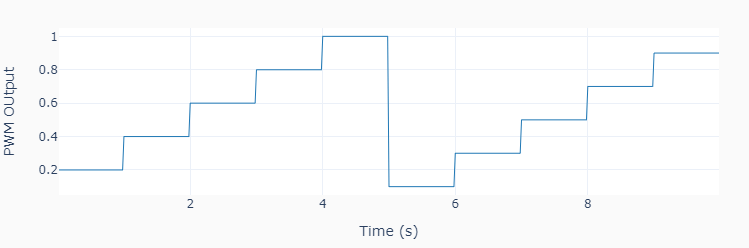
The first code example shows how to apply a pre-defined sequence of steps pwmvalue at regular time intervals tstep.

import time
import numpy as np
from utils import plot_line
from gpiozero import PWMOutputDevice

# Assigning parameter values
pinled = 17  # PWM output (LED input) pin
pwmfreq = 200  # PWM frequency (Hz)
pwmvalue = [0.4, 0.6, 0.8, 1.0, 0.1, 0.3, 0.5, 0.7, 0.9]
tstep = 1.0  # Interval between step changes (s)
tsample = 0.02  # Sampling period for code execution (s)
tstop = tstep * (len(pwmvalue)+1)  # Total execution time (s)
# Preallocating output arrays for plotting
t = []  # Time (s)
value = []  # PWM output duty cycle value

# Creating PWM output object (LED input)
led = PWMOutputDevice(pinled, frequency=pwmfreq)
# initializing other variables used in the loop
count = 0
valuecurr = 0.2

# Initializing timers and starting main clock
tprev = 0
tcurr = 0
tstart = time.perf_counter()
# Running execution loop
print('Running code for', tstop, 'seconds ...')
while tcurr <= tstop:
    # Updating PWM output every `tstep` seconds
    # with values from prescribed sequence
    if (np.floor(tcurr/tstep) - np.floor(tprev/tstep)) == 1:
        valuecurr = pwmvalue[count]
        led.value = valuecurr
        count += 1
    # Acquiring digital data every `tsample` seconds
    # and appending values to output arrays
    if (np.floor(tcurr/tsample) - np.floor(tprev/tsample)) == 1:
        t.append(tcurr)
        value.append(valuecurr)
# Updating previous time and getting new current time (s)
tprev = tcurr
tcurr = time.perf_counter() - tstart

# Releasing pins
led.close()
print('Done.')

# Plotting results
plot_line([t], [value], yname='PWM OUtput')
plot_line([t[1::]], [1000*np.diff(t)], yname='Sampling Period (ms)')

The second example shows how to apply a pre-defined sequence of ramps where each segment has a duration rampduration and final value rampvalue.

To run this example, the SciPy package needs to be installed on the Raspberry Pi (pi@raspberrypi:~$ sudo apt install scipy). You will need to fix a conflict between the numpy packages used by SciPy and Raspberry Pi, by installing this library: pi@raspberrypi:~$ sudo apt-get install libatlas-base-dev .

import time
import numpy as np
from utils import plot_line
from scipy.interpolate import interp1d
from gpiozero import PWMOutputDevice

# Assigning parameter values
pinled = 17  # PWM output (LED input) pin
pwmfreq = 200  # PWM frequency (Hz)
rampduration = [0, 0.5, 1.5, 0.5, 1.5, 0.5, 1.5, 0.5, 1.5, 0.5, 1.5]
rampvalue = [0, 0.2, 0.0, 0.4, 0.0, 0.6, 0.0, 0.8, 0.0, 1.0, 0.0]
tsample = 0.02  # Sampling period data sampling (s)
tstop = np.sum(rampduration)  # Total execution time (s)
# Preallocating output arrays for plotting
t = []  # Time (s)
value = []  # PWM output duty cycle value

# Creating interpolation function for ramp sequence
tramp = np.cumsum(rampduration)
framp = interp1d(tramp, rampvalue)
# Creating PWM output object (LED input)
led = PWMOutputDevice(pinled, frequency=pwmfreq)

# Initializing timers and starting main clock
tprev = 0
tcurr = 0
tstart = time.perf_counter()
# Running execution loop
print('Running code for', tstop, 'seconds ...')
while tcurr <= tstop:
    # Updating PWM output every loop step with
    # interpolated ramp values at the current time
    valuecurr = framp(tcurr)
    led.value = valuecurr
    # Acquiring digital data every `tsample` seconds
    # and appending values to output arrays
    if (np.floor(tcurr/tsample) - np.floor(tprev/tsample)) == 1:
        t.append(tcurr)
        value.append(valuecurr)
    # Updating previous time and getting new current time (s)
    tprev = tcurr
    tcurr = time.perf_counter() - tstart

# Releasing pins
led.close()
print('Done.')

# Plotting results
plot_line([t], [value], yname='PWM OUtput')
plot_line([t[1::]], [1000*np.diff(t)], yname='Sampling Period (ms)')

By choosing the proper values for rampduration and rampvalue, virtually any trace composed of linear segments can be generated.

rampduration = [0, 0.5, 1.0, 1.0, 1.5, 0.5, 0.5, 0.5, 1.5, 0.5, 1.5, 1.0]
rampvalue = [0, 0.2, 0.2, 0.4, 0.4, 0.2, 0.2, 1.0, 1.0, 0.6, 0.4, 0.4]

And since the current time is used for the interpolation of the trace current value, a very accurate signal can be generated, regardless of fluctuations in the duration of the execution steps.

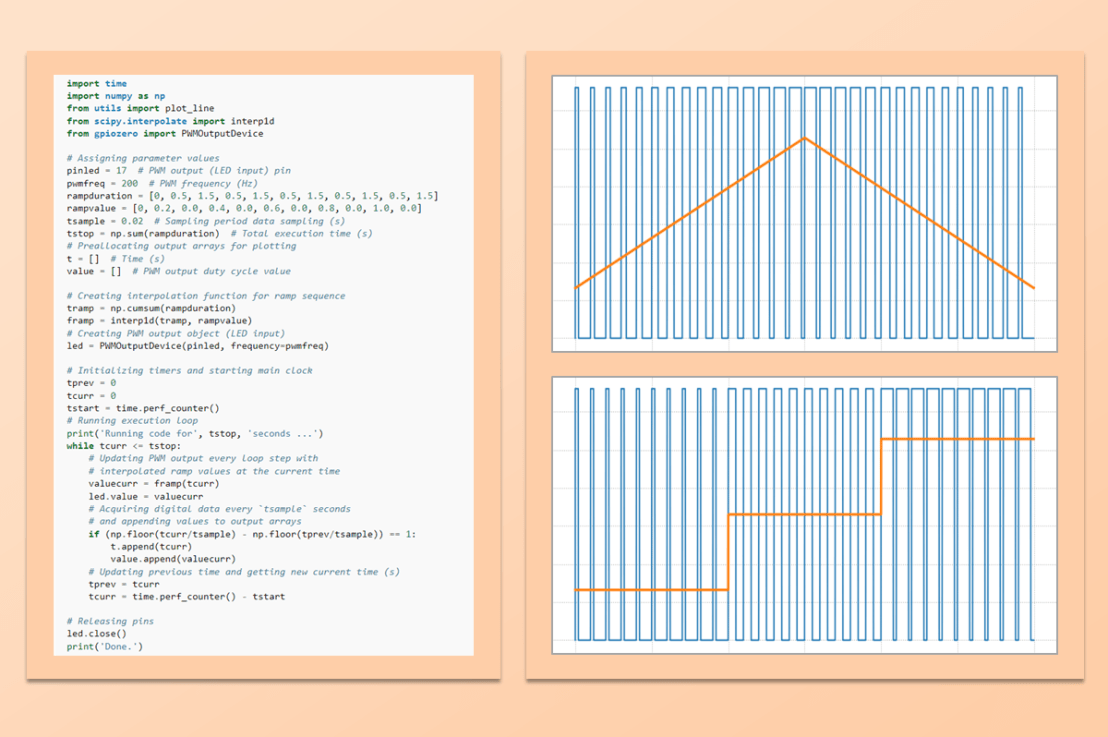
If you liked the featured image at the top of the post, feel free to get the Python source code on my GitHub page.

A useful Python plotting module

A useful Python plotting module

First of all, let’s talk a little bit about online Python documentation. At the top of my list is the official Python Documentation. It is extremely well written, with plenty of examples. I always start from the Tutorial page and dig from there. For the specific “how-to-do-that” questions, do a Google search and then ONLY choose answers from stackoverflow or stackexchange. Any other sites will probably flash more ads in front of your eyes than you can handle. Not to mention, their answers are likely copied from the two sites I mentioned.

Some of my examples throughout this blog use a plotting function that I made using Plotly. As far as graphing packages in Python are concerned, Plotly and Matplotlib are my favorites. However, I chose the former for this because its graphs are more interactive, which can be helpful when looking at data. In my opinion, you will get the most out of the function if you’re using VSCode and have the Jupyter notebook extensions installed. The Plotly graphs will show right there in the interactive window.

The plotting function should be inside a Python module, which I named utils.py. It’s a starting place for someone to add other functions or classes for tasks that are done routinely in programs. You can copy the code below and save it in a utils.py module and import it as needed when running some of the examples. Check out how to use it here.

""" utils.py

Contains a useful plotting function that is used in the coding examples.
The function was built using Plotly instead of Matplotlib due to its
interactive graphs and because it runs better on Raspberry Pi Linux.

Author: Eduardo Nigro
    rev 0.0.6
    2022-01-24
"""
import numpy as np
import plotly.io as pio
import plotly.graph_objects as go
from plotly.subplots import make_subplots

# Setting plotting modified template as default
mytemplate = pio.templates["plotly_white"]
mytemplate.layout["paper_bgcolor"] = "rgb(250, 250, 250)"
pio.templates.default = mytemplate


def plot_line(
    x, y, xname="Time (s)", yname=None, axes="single",
    figsize=None, line=True, marker=False, legend=None):
    """
    Plot lines using plotly.

    :param x: x values for plotting.
        List or ndarray. List of lists or ndarrays is also supported.
    :type x: list(float), list(list), list(ndarray)

    :param y: y values for plotting.
        List or ndarray. List of lists or ndarrays is also supported.
    :type y: list(float), list(list), list(ndarray)

    :param xname: The x axis title. Default value is ``'Time (s)'``.
        If ``'Angle (deg.)'`` is used, axes ticks are configured in 360 degree
        increments.
    :type xname: str

    :param yname: The y axis title.
        A string or list of strings containing the names of the y axis titles.
        If ``None``, the y axis titles will be ``'y0'``, ``'y1'``, etc.
    :type yname: str, list(str)

    :param axes: The configuration of axis on the plot.
        If ``'single'``, multiple curves are plotted on the same axis.
        If ``'multi'``, each curve is plotted on its own axis.
    :type axes: str

    :param figsize: The figure size (``width``, ``height``) in pixels.
    :type figsize: tuple(int)

    :param line: Displays the curves if ``True``.
    :type line: bool, list(bool)

    :param marker: Displays markers on the curves if ``True``.
    :type marker: bool, list(bool)

    :param legend: List of legend names for multiple curves.
        Length of `legend` must be the same as length of `y`.
    :type legend: list(str)

    Example:
        >>> import numpy as np
        >>> from utils import plot_line
        >>> t = np.linspace(0,2,100)
        >>> y0 = np.sin(1*np.pi*t)
        >>> y1 = np.cos(1*np.pi*t)
        >>> plot_line(
                [t]*2, [y0, y1],
                yname=['sin & cos'],
                legend=['sin(pi x t)', 'cos(pi x t)']
                )

    """
    # Making sure x and y inputs are put in lists if needed
    if type(x) != list:
        x = [x]
    else:
        if type(x[0]) not in [list, np.ndarray]:
            x = [x]
    if type(y) != list:
        y = [y]
    else:
        if type(y[0]) not in [list, np.ndarray]:
            y = [y]
    # Doing a simple check for consistent x and y inputs
    if len(x) != len(y):
        raise Exception("'x' and 'y' inputs must have the same length.")
    # Adjusting y axis title based on input
    if not yname:
        yname = ["y" + str(i) for i in range(len(y))]
    elif type(yname) != list:
        yname = [yname]
    if (len(yname) == 1) and (len(y) > 1):
        yname = yname * len(y)
    # Setting legend display option
    if legend is not None:
        if len(legend) == len(y):
            showlegend = True
        else:
            raise Exception("'y' and 'legend' must have the same length.")
    else:
        showlegend = False
        legend = [None] * len(y)
    # Checking for single (with multiple curves)
    # or multiple axes with one curve per axes
    if axes == "single":
        naxes = 1
        iaxes = [0] * len(y)
        colors = [
            "#1F77B4",
            "#FF7F0E",
            "#2CA02C",
            "#D62728",
            "#9467BD",
            "#8C564B",
            "#E377C2",
            "#7F7F7F",
            "#BCBD22",
            "#17BECF",
        ]
    elif axes == "multi":
        naxes = len(y)
        iaxes = range(0, len(y))
        colors = ["rgb(50, 100, 150)"] * len(y)
    else:
        raise Exception("Valid axes options are: 'single' or 'multi'.")
    # Checking for line and marker options
    if type(line) != list:
        line = [line] * len(y)
    if type(marker) != list:
        marker = [marker] * len(y)
    mode = []
    markersize = []
    for linei, markeri in zip(line, marker):
        if linei and markeri:
            mode.append("lines+markers")
            markersize.append(2)
        elif linei and not markeri:
            mode.append("lines")
            markersize.append(2)
        elif not linei and markeri:
            mode.append("markers")
            markersize.append(8)
    # Setting figure parameters
    if figsize:
        wfig, hfig = figsize
    else:
        wfig = 650
        hfig = 100 + 150*naxes
    m0 = 10
    margin = dict(l=6 * m0, r=3 * m0, t=3 * m0, b=3 * m0)
    # Plotting results
    fig = make_subplots(rows=naxes, cols=1)
    for i, xi, yi, ynamei, legendi, colori, modei, markersizei in zip(
            iaxes, x, y, yname, legend, colors, mode, markersize):
        # Adding x, y traces to appropriate plot
        fig.add_trace(
            go.Scatter(
                x=xi,
                y=yi,
                name=legendi,
                mode=modei,
                line=dict(width=1, color=colori),
                marker=dict(size=markersizei, color=colori),
            ),
            row=i + 1,
            col=1,
        )
        # Adding x axes ticks
        if xname.lower().find("angle") < 0:
            # Regular x axes
            fig.update_xaxes(matches="x", row=i + 1, col=1)
        else:
            # Special case where x axes has angular values
            fig.update_xaxes(
                tickmode="array",
                tickvals=np.arange(0, np.round(xi[-1]) + 360, 360),
                matches="x",
                row=i + 1,
                col=1,
            )
        # Adding y axis title to all plots
        fig.update_yaxes(title_text=ynamei, row=i + 1, col=1)
    # Adding x axis title to bottom plot only
    fig.update_xaxes(title_text=xname, row=i + 1, col=1)
    # Applying figure size, margins, and legend
    fig.update_layout(
        margin=margin, width=wfig, height=hfig, showlegend=showlegend)
    fig.show()