Category: Uncategorized

Band-pass Filter

Band-pass Filter

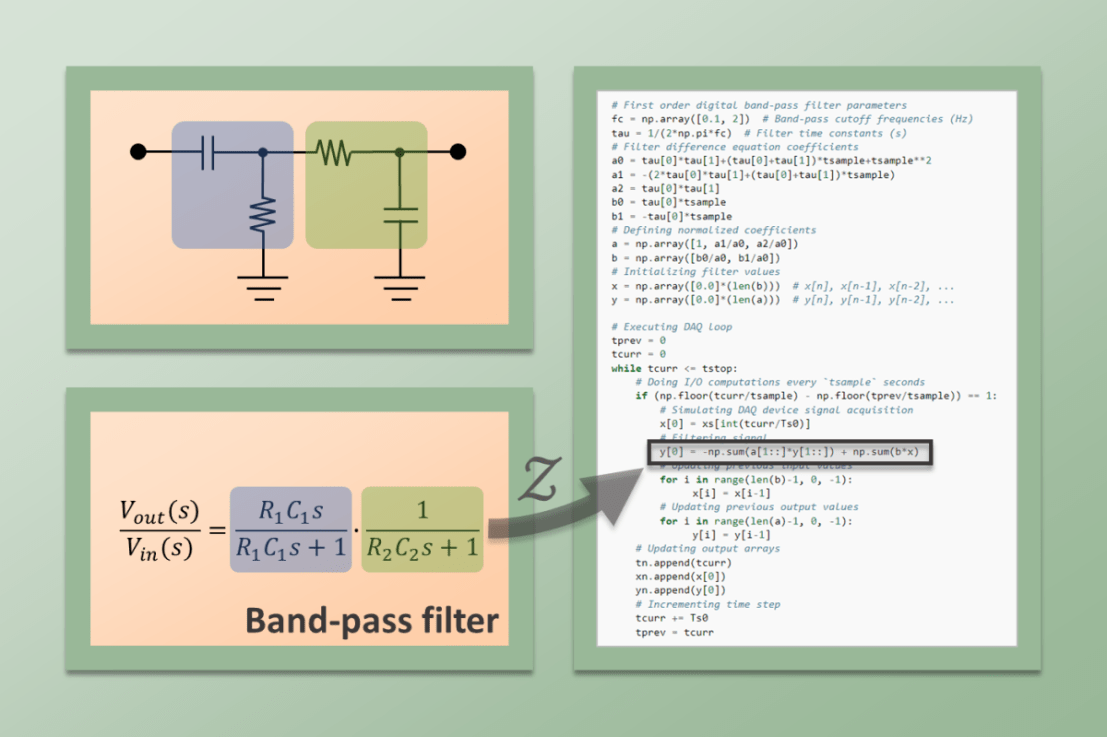
A band-pass filter attenuates both low and high frequency components of a signal and therefore, as the name suggests, allows for a band of frequencies to pass through. In this post, we will briefly go over an analog implementation of this type of filter by cascading high-pass and low-pass passive analog filters. I will also go through a digital implementation using Python, as seen on the post Joystick with Raspberry Pi.
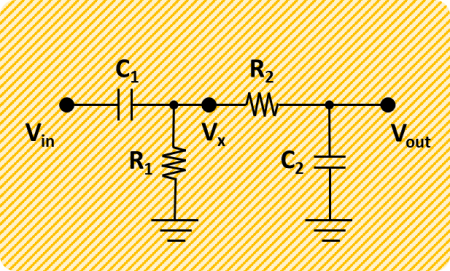
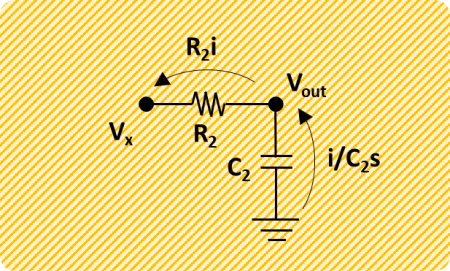
The RC circuit diagram shows the high- and low-pass filters in a cascaded arrangement. The cutoff frequency (rad/s) for the high-pass is and for the low-pass. In terms of time constants (which will be helpful later with conciseness), we have respectively and .


For example, a band-pass filter with cutoff frequencies of approximately 0.1 and 2 Hz can be realized with, , , and . Or, using time constants, and .

That’s about it for the analog implementation of a first-order band-pass filter. Let’s see how we can derive the digital version of the same filter and have it ultimately implemented in Python code (at the bottom of this post if you want to skip the technical mumbo jumbo).

Continuous Filter

The first step is to come up with a mathematical representation of the band-pass filter in the analog (continuous) domain. More specifically, as already mentioned in the PID tuning post, let’s work with the Laplace transform (or s-domain), which conveniently turns differential equations into much easier to solve polynomial equations.

In the case of the RC circuit for the band-pass filter, we want to find the transfer function between the output voltageand the input voltage. In other words, between the raw and the filtered signals.

The relationships between voltage and current for the resistor and capacitor are given by:

and
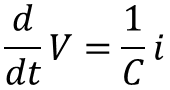
In the s-domain, the derivative operatoris “replaced” with the algebraic s operator:
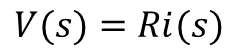
and
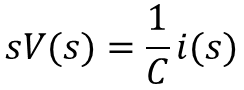
The filter can be separated into two filters (a high-pass and a low-pass), where distinct transfer functions betweenand, as well as betweenand , can be derived and then combined.
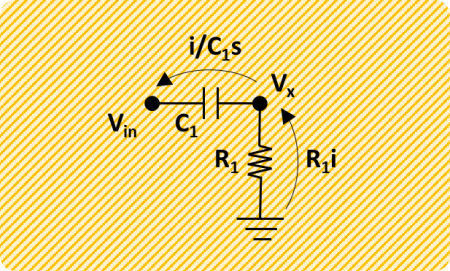
Solving the system’s first equation (below) for the current and substituting in the second equation gives:
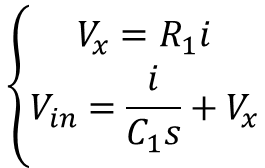
And rearranging as a transfer function:
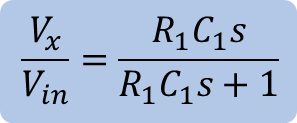
Solving the system’s first equation (below) for the current and substituting in the second equation gives:


And rearranging like the high-pass case:
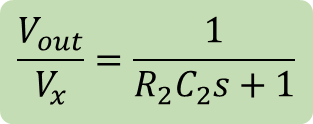
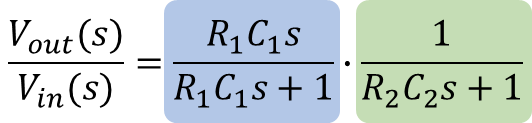
Finally, solving the function for the low-pass filter forand substituting the result in the function for the high-pass filter, will lead to the transfer function of the band-pass filter below (also shown in terms of time constants and descending powers of s):

Discrete Filter

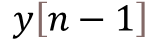
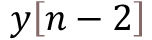
The next task is to convert the continuous system to a discrete one. Similarly to the continuous domain, where the derivative operatoris represented by the operator s, the discrete domain has the operator z. (or 1) corresponds to the current time step discrete value, corresponds to the previous value , to the value before the previous one, and so on.

As seen in the post about digital filtering, for a discrete system with sampling period, the derivative of a continuous variable can be approximated by the backward difference below:
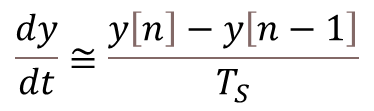
And in terms of operators, we can write:

Substituting s in the continuous transfer function for the band-pass filter gives the equation in the z-domain below. Note also that, because we are talking about a filter for any type of signal, the voltages were replaced by more general input and output variables.
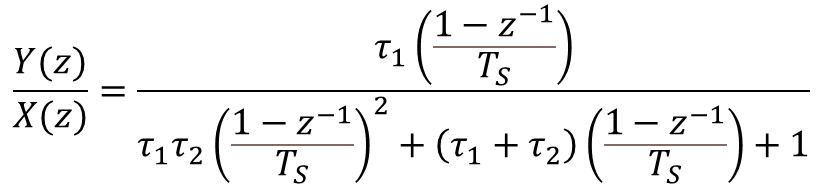
Carrying out the math so we can regroup in terms of descending powers of z, and multiplying both top and bottom by, leads to:

We can then rearrange the z transfer function above to resemble a difference equation:

Where:
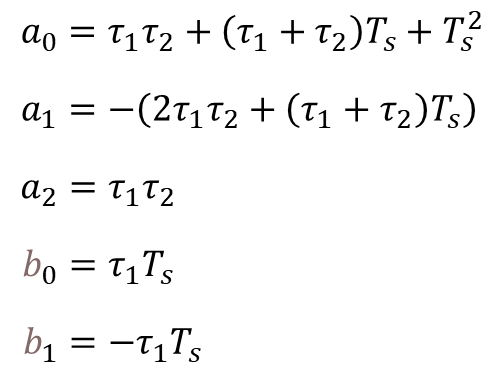
At last, the equation above can be brought to a more useful difference equation form, by replacing the z operators by their corresponding discrete system values:

Python Code for Band-Pass Filter

The following Python program implements the digital filter with a fictitious signal comprised of three sinusoidal waves with frequencies 0.01, 0.5, and 25 Hz. The low and high cutoff frequencies of the filter are 0.1 and 2 Hz, therefore allowing only the 0.5 Hz component of the original signal to pass through.

By analyzing the code, it is straightforward to identify the filter coefficients determined in the previous section. The difference equation was implemented in the more general form

where the sets of coefficientsandare normalized by the coefficientof the output. This approach allows for any type of digital filter to be used in the code, as long as the normalized coefficients are defined.

# Importing modules and classes
import numpy as np
from utils import plot_line

# "Continuous" signal parameters
tstop = 20  # Signal duration (s)
Ts0 = 0.0002  # Time step (s)
fs0 = 1/Ts0  # Sampling frequency (Hz)
# Discrete signal parameters
tsample = 0.01  # Sampling period for code execution (s)
# Preallocating output arrays for plotting
tn = []
xn = []
yn = []

# Creating arbitrary signal with multiple sine functions
freq = [0.01, 0.5, 25]  # Sine frequencies (Hz)
ampl = [0.4, 1.0, 0.2]  # Sine amplitudes
t = np.arange(0, tstop+Ts0, Ts0)
xs = np.zeros(len(t))
for ai, fi in zip(ampl, freq):
    xs = xs + ai*np.sin(2*np.pi*fi*t)

# First order digital band-pass filter parameters
fc = np.array([0.1, 2])  # Band-pass cutoff frequencies (Hz)
tau = 1/(2*np.pi*fc)  # Filter time constants (s)
# Filter difference equation coefficients
a0 = tau[0]*tau[1]+(tau[0]+tau[1])*tsample+tsample**2
a1 = -(2*tau[0]*tau[1]+(tau[0]+tau[1])*tsample)
a2 = tau[0]*tau[1]
b0 = tau[0]*tsample
b1 = -tau[0]*tsample
# Defining normalized coefficients
a = np.array([1, a1/a0, a2/a0])
b = np.array([b0/a0, b1/a0])
# Initializing filter values
x = np.array([0.0]*(len(b)))  # x[n], x[n-1], x[n-2], ...
y = np.array([0.0]*(len(a)))  # y[n], y[n-1], y[n-2], ...

# Executing DAQ loop
tprev = 0
tcurr = 0
while tcurr <= tstop:
    # Doing I/O computations every `tsample` seconds
    if (np.floor(tcurr/tsample) - np.floor(tprev/tsample)) == 1:
        # Simulating DAQ device signal acquisition
        x[0] = xs[int(tcurr/Ts0)]
        # Filtering signal
        y[0] = -np.sum(a[1::]*y[1::]) + np.sum(b*x)
        # Updating previous input values
        for i in range(len(b)-1, 0, -1):
                x[i] = x[i-1]
        # Updating previous output values
        for i in range(len(a)-1, 0, -1):
                y[i] = y[i-1]
    # Updating output arrays
    tn.append(tcurr)
    xn.append(x[0])
    yn.append(y[0])
    # Incrementing time step
    tprev = tcurr
    tcurr += Ts0

# Plotting results
plot_line(
    [t, tn], [xs, yn], yname=['X Input', 'Y Output'],
    legend=['Raw', 'Filtered'], figsize=(1300, 250)
)

The plot below shows the code output where the low frequency drift and the high frequency noise are almost fully removed from the signal, while the desired component of 0.5 Hz is preserved.

Ultrasonic Sensor with Raspberry Pi

Ultrasonic Sensor with Raspberry Pi

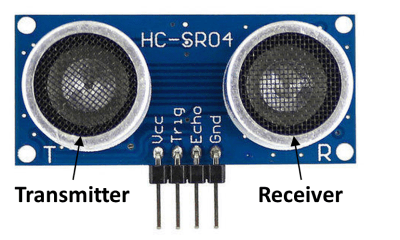
An ultrasonic sensor can be used to detect the distance to an obstacle placed in front of it. The HC-SR04 sensor is an affordable option with fairly good accuracy for measurements between a couple of centimeters and a couple of meters. While primarily designed to work with an Arduino, this type of ultrasonic sensor can easily be used with a Raspberry Pi, provided some adjustments to the level of the signal voltage are made.

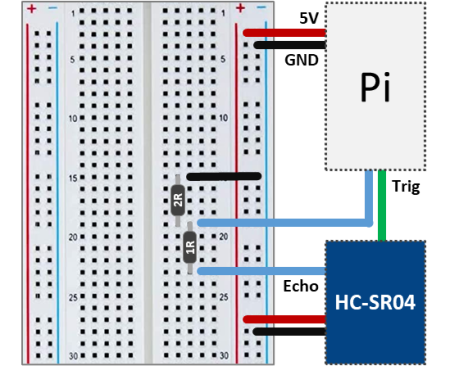
The wiring schematic above illustrates how to connect the ultrasonic sensor to the Pi. The HC-SR04 works with 5V for the supply voltage as well as for the logic signals Trig (emits ultrasonic sound wave) and Echo (detects reflected sound wave). Since the Raspberry Pi GPIO pins work with 3.3V logic signals, a voltage divider must be used. A 1:2 ratio of the resistors, as shown in the diagram, will do the trick. In my case I used 1 and 2 kΩ respectively. The Trig and (divided) Echo signals can then be connected to any Pi GPIO pins.

Operating principle of the HC-SR04

As mentioned earlier, this ultrasonic sensor has two logic pins that are used to detect the presence of an object:

  • Trigger – When activated by a 10 μs pulse, it emits an 8-pulse train of ultrasonic sound (40 kHz). The 8-pulse pattern is designed to help the receiver better distinguish between the actual signal and ultrasonic ambient noise.
  • Echo – Is used to detect the reflected 8-pulse signal. It transitions from a LOW to a HIGH state as soon as the 8-pulse train is emitted. It remains HIGH until a reflected signal is detected or 38 ms are elapsed (whichever occurs first).

The distance to the obstacle can be determined by measuring the time that the Echo pin remains HIGH, and by knowing that the speed of sound is 343 m/s (at 20 degrees Celsius). The three quantities are related through the equation below, which can be solved for distance. Note that since the sound wave travels to and from the detected obstacle before it gets to the sensor receiver, a factor of 2 appears in front of the distance.

Therefore:

Remember that the Echo signal remains high for about 38 ms. Hence, by using the formula above, an object that is more that about 6.5 m away cannot be accurately detected. In practical terms, the further away the obstacle is, the easier it is for the sensor to get confused with other reflections of the emitted ultrasonic pulse train. If the space that you are trying to navigate is full of hard surfaces at varying relative angles among them (such as a maze), there will be a lot of reflected signals coming from all over! You might stand a chance to be successful if the obstacles are no more than 0.5 m away.

Sensor Interface with Python

The code below shows a very simple class that represents the ultrasonic sensor. By inspecting the code, one should be able to identify the logic to generate the Trigger signal as well as the logic to determine the time that the Echo signal remains HIGH. The formula above is also implemented in the code to calculate the distance to an obstacle.

# Importing modules and classes
import time
from gpiozero import DigitalInputDevice, DigitalOutputDevice

# Defining sensor class
class UltraSonic:
    """
    Simple class that illustrates the ultrasonic sensor operating principle.

    """
    def __init__(self, echo, trigger):
        # Assingning ultrasonic sensor echo and trigger GPIO pins
        self._usoundecho = DigitalInputDevice(echo)
        self._usoundtrig = DigitalOutputDevice(trigger)
        # Assigning speed of sound (cm/s)
        self.speedofsound = 34300

    @property
    def distance(self):
        # Sending trigger pulse (~10 us)
        self._usoundtrig.on()
        time.sleep(0.000010)
        self._usoundtrig.off()
        # Detecting echo pulse start
        while self._usoundecho.value == 0:
            trise = time.perf_counter()
        # Detecting echo pulse end
        while self._usoundecho.value == 1:
            tfall = time.perf_counter()
        # Returning distance (cm)
        return 0.5 * (tfall-trise) * self.speedofsound

    @distance.setter
    def distance(self, _):
        print('"distance" is a read only attribute.')

    def __del__(self):
        self._usoundecho.close()
        self._usoundtrig.close()


# Assigning some parameters
tsample = 1  # Sampling period for code execution (s)
tstop = 10  # Total execution time (s)
# Creating ultrasonic sensor object
usensor = UltraSonic(echo=27, trigger=4)
# Initializing variable and starting main clock
tcurr = 0
tstart = time.perf_counter()

# Execution loop
print('Running code for', tstop, 'seconds ...')
while tcurr <= tstop:
    print('Waiting for sensor...')
    time.sleep(tsample)
    # Getting current time (s)
    tcurr = time.perf_counter() - tstart
    # Displaying measured distance
    print("Distance = {:0.1f} cm".format(usensor.distance))

print('Done.')
# Deleting sensor
del usensor

There is in fact a really good implementation of an ultrasonic sensor class in GPIO Zero. It uses multi-threading to give near instantaneous sensor distance measurements. Additionally, a moving average is used in the measurement calculation to improve the signal-to-noise ratio. The code below shows how simple it is to use the DistanceSensor class.

Observe that the execution portions of the two pieces of code are virtually the same, which illustrates the portability of classes inside a program. Finally, in the examples, I used the GPIO pins 4 and 27 for the Trigger and Echo signals, respectively.

# Importing modules and classes
import time
from gpiozero import DistanceSensor

# Assigning some parameters
tsample = 1  # Sampling period for code execution (s)
tstop = 10  # Total execution time (s)
# Creating ultrasonic sensor object
usensor = DistanceSensor(echo=27, trigger=4, max_distance=2)
# Initializing variable and starting main clock
tcurr = 0
tstart = time.perf_counter()

# Execution loop
print('Running code for', tstop, 'seconds ...')
while tcurr <= tstop:
    print('Waiting for sensor...')
    time.sleep(tsample)
    # Getting current time (s)
    tcurr = time.perf_counter() - tstart
    # Displaying measured distance (with unit conversion)
    print("Distance = {:0.1f} cm".format(100*usensor.distance))

print('Done.')
# Deleting sensor
del usensor
Temperature Sensor with Raspberry Pi

Temperature Sensor with Raspberry Pi

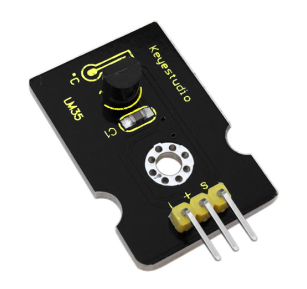
Let’s go over the application of a linear temperature sensor with the Pi. Keyestudio provides the analog LM35 sensor, with a sensitivity of 10 mV per degree Celsius, and a range between 0 and 100 degrees. While primarily designed to take advantage of the Arduino analog input channels, it’s possible to use the LM35 in conjunction with the MCP3008 analog-to-digital converter chip.

The breadboard schematic above illustrates the wiring for the LM35 (using CH0) and the MCP3008. Note that the temperature sensor is connected to the 5V supply voltage as well as the GND GPIO pins of the Raspberry Pi. The Python code below shows a simple application of the temperature sensor in an execution loop. Due to the long response times of this type of sensor, a sampling period of 0.5 seconds is plenty fast.

# Importing modules and classes
import time
import numpy as np
from gpiozero import MCP3008

# Creating ADC channel object for temperature sensor
chtemp = MCP3008(channel=0, clock_pin=11, mosi_pin=10, miso_pin=9, select_pin=8)

# Assigning some parameters
tsample = 0.5  # Sampling period for code execution (s)
tdisp = 1  # Sampling period for value display (s)
tstop = 20  # Total execution time (s)
vref = 3.3  # Reference voltage for MCP3008
ktemp = 100  # Temperature sensor gain (degC/V)

# Initializing variables and starting main clock
tprev = 0
tcurr = 0
tstart = time.perf_counter()

# Execution loop
print('Running code for', tstop, 'seconds ...')
while tcurr <= tstop:
    # Pausing for `tsample`
    time.sleep(tsample)
    # Getting current time (s)
    tcurr = time.perf_counter() - tstart
    # Getting sensor normalized voltage output
    valuecurr = chtemp.value
    # Calculating temperature
    tempcurr = vref*ktemp*valuecurr
    # Displaying temperature every `tdisp` seconds
    if (np.floor(tcurr/tdisp) - np.floor(tprev/tdisp)) == 1:
        print("Temperature = {:d} deg C".format(int(np.round(tempcurr))))
    # Updating previous time value
    tprev = tcurr

print('Done.')
# Releasing GPIO pins
chtemp.close()

The next piece of code replaces the computer screen display with a 7-segment LED display. It’s a more interesting way to do both the input and output with a Raspberry Pi.

# Importing modules and classes
import time
import numpy as np
import tm1637
from gpiozero import MCP3008

# Creating 4-digit 7-segment display object
tm = tm1637.TM1637(clk=18, dio=17)
# Creating ADC channel object for temperature sensor
chtemp = MCP3008(channel=0, clock_pin=11, mosi_pin=10, miso_pin=9, select_pin=8)

# Assigning some parameters
tsample = 0.5  # Sampling period for code execution (s)
tdisp = 1  # Sampling period for value display (s)
tstop = 20  # Total execution time (s)
vref = 3.3  # Reference voltage for MCP3008
ktemp = 100  # Temperature sensor gain (degC/V)

# Initializing variables and starting main clock
tprev = 0
tcurr = 0
tstart = time.perf_counter()

# Execution loop
print('Running code for', tstop, 'seconds ...')
while tcurr <= tstop:
    # Pausing for `tsample`
    time.sleep(tsample)
    # Getting current time (s)
    tcurr = time.perf_counter() - tstart
    # Getting sensor normalized voltage output
    valuecurr = chtemp.value
    # Calculating temperature
    tempcurr = vref*ktemp*valuecurr
    # Displaying temperature every `tsample` seconds
    tm.temperature(int(np.round(tempcurr)))

print('Done.')
# Clearing display and releasing GPIO pins
tm.write([0, 0, 0, 0])
chtemp.close()

Temperature Sensor Accuracy

What about the accuracy of the LM35 sensor? Luckily enough I do have a LabJack T7 and an actual laboratory grade thermocouple (which has an accuracy of +/- 2 deg. C). At the time of this post, the temperature in my house was 21 deg. Celsius. Using the code above, the LM35 was reading 20 deg. C, while the thermocouple with the LabJack T7 was reading 21 deg. C.

The Python program below shows how to use the LabJack T7 for a simple temperature measurement. You can learn more about using Python to interact with a LabJack T7 here.

Unlike the thermocouple, the LM35 cannot be submerged in an ice bath (approx. 0 deg. C) or boiling water (approx. 100 deg. C), since that would clearly damage its electronic circuitry. Therefore I had to settle with the very unsophisticated measurement of the ambient temperature in my house to compare the two types of sensors.

# Importing modules and classes
import time
import numpy as np
from labjack_unified.devices import LabJackT7

# Creating LabJack object
ljt7 = LabJackT7()
# Assigning `K` type thermocouple to channel AIN0
ljt7.set_TC('AIN0', 'K')
# Assigning some parameters
tsample = 0.5  # Sampling period for code execution (s)
tdisp = 1  # Sampling period for value display (s)
tstop = 20  # Total execution time (s)

# Initializing variables and starting main clock
tprev = 0
tcurr = 0
tstart = time.perf_counter()

# Execution loop
print('Running code for', tstop, 'seconds ...')
while tcurr <= tstop:
    # Pausing for `tsample`
    time.sleep(tsample)
    # Getting current time (s)
    tcurr = time.perf_counter() - tstart
    # Getting current temperature
    tempcurr = ljt7.get_TCtemp()
    # Displaying temperature every `tdisp` seconds
    if (np.floor(tcurr/tdisp) - np.floor(tprev/tdisp)) == 1:
        print("Temperature = {:d} deg C".format(int(np.round(tempcurr))))
    # Updating previous time value
    tprev = tcurr

print('Done.')
# Closing LabJack object
ljt7.close()
7-Segment LED Display with Raspberry Pi

7-Segment LED Display with Raspberry Pi

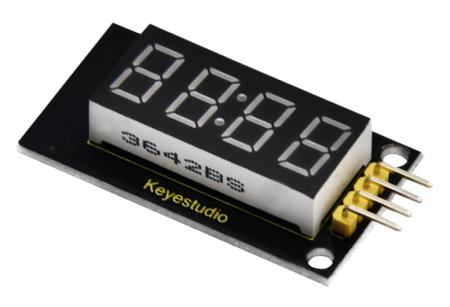
These types of LED displays are quite popular and can be used to add a visual output to a Raspberry Pi automation project. In this post, I will be talking about the KS0445 4-digit LED Display Module from keyestudio. While keyestudio kits are primarily designed to work with Arduino, they are perfectly suitable for Pi applications.

In theory, any LED 4-digit Display using a TM1637 chip can be used with the Python code that will be shown.

The first step is to install the TM1637 Python package containing the class that will simplify controlling the LED display quite a bit. As a side note, I strongly encourage installing VS Code on the Pi, so you can code like a pro.

Open a terminal window in VS Code and type:

pip install raspberrypi-tm1637

Once the installation is complete, you can wire the display as shown below and try the Python code that follows. It illustrates how straightforward it is to use some of the methods of the TM1637 class that come in the package.

# Importing modules and classes
import tm1637
import time
import numpy as np
from datetime import datetime
from gpiozero import CPUTemperature

# Creating 4-digit 7-segment display object
tm = tm1637.TM1637(clk=18, dio=17)  # Using GPIO pins 18 and 17
clear = [0, 0, 0, 0]  # Defining values used to clear the display

# Displaying a rolling string
tm.write(clear)
time.sleep(1)
s = 'This is pretty cool'
tm.scroll(s, delay=250)
time.sleep(2)

# Displaying CPU temperautre
tm.write(clear)
time.sleep(1)
cpu = CPUTemperature()
tm.temperature(int(np.round(cpu.temperature)))
time.sleep(2)

# Displaying current time
tm.write(clear)
time.sleep(1)
now = datetime.now()
hh = int(datetime.strftime(now,'%H'))
mm = int(datetime.strftime(now,'%M'))
tm.numbers(hh, mm, colon=True)
time.sleep(2)
tm.write(clear)

Raspberry Pi Stopwatch with LED Display

That was pretty much it for the LED display. However, let’s go for an Easter egg, where we implement a stopwatch that can be controlled by keyboard inputs. The main feature here is the use of the Python pynput package, which seamlessly enables non-blocking keyboard inputs. To get started, in a terminal window in VS Code, type:

pip install pynput

To make things more interesting, I created the class StopWatch with the following highlights:

  • First and foremost, could the entire code be written using a function (or a few functions) or even as a simple script? Yes, it could. However, using a class makes for code that is much more modular and expandable, and that can easily be integrated into other code.
  • At the center of the the StopWatch class is the execution loop method. For conciseness and readability, all other methods (with very descriptive names) are called from within this execution loop.
  • The beauty of using a class and therefore its methods is that the latter can be called from different points in the code, as it is the case of the start_watch() method, for example.
  • Finally, as the code is written as a class vs. functions, all the variables can be defined as class attributes. That really reduces complexity with input arguments, if functions were to be used instead.
# Importing modules and classes
import time
import tm1637
import numpy as np
from pynput import keyboard


class StopWatch:
    """
    The class to represent a digital stopwatch.

    **StopWatch** runs on a Raspberry PI and uses a 4-digit 7-segment display
    with a TM1637 control chip.

    The following keyboard keys are used:

        * ``'s'`` to start/stop the timer.
        * ``'r'`` to reset the timer.
        * ``'q'`` to quit the application.

    """
    def __init__(self):
        """
        Class constructor.

        """
        # Creating 4-digit 7-segment display object
        self.tm = tm1637.TM1637(clk=18, dio=17)  # Using GPIO pins 18 and 17
        self.tm.show('00 0')  # Initializing stopwatch display
        # Creating keyboard event listener object
        self.myevent = keyboard.Events()
        self.myevent.start()
        # Defining time control variables (in seconds)
        self.treset = 60  # Time at which timer resets
        self.ts = 0.02  # Execution loop time step
        self.tdisp = 0.1  # Display update period
        self.tstart = 0  # Start time
        self.tstop = 0  # Stop time
        self.tcurr = 0  # Current time
        self.tprev = 0  # Previous time
        # Defining execution flow control flags
        self.run = False  # Timer run flag
        self.quit = False  # Application quit flag
        # Running execution loop
        self.runExecutionLoop()

    def runExecutionLoop(self):
        """
        Run the execution loop for the stopwatch.

        """
        # Running until quit request is received
        while not self.quit:
            # Pausing to make CPU life easier
            time.sleep(self.ts)
            # Updating current time value
            self.update_time()
            # Handling keyboard events
            self.handle_event()
            # Checking if automatic reset time was reached
            if self.tcurr >= self.treset:
                self.stop_watch()
                self.reset_watch()
                self.start_watch()
            # Updating digital display
            self.update_display()
            # Stroing previous time step
            self.tprev = self.tcurr

    def handle_event(self):
        """
        Handle non-blocking keyboard inputs that control stopwatch.

        """
        # Getting keyboard event
        event = self.myevent.get(0.0)
        if event is not None:
            # Checking for timer start/stop
            if event.key == keyboard.KeyCode.from_char('s'):
                if type(event) == keyboard.Events.Release:
                    if not self.run:
                        self.run = True
                        self.start_watch()
                    elif self.run:
                        self.run = False
                        self.stop_watch()
            # Checking for timer reset
            elif event.key == keyboard.KeyCode.from_char('r'):
                if type(event) == keyboard.Events.Release:
                    if not self.run:
                        self.reset_watch()
                    elif self.run:
                        print('Stop watch before resetting.')
            # Checking for application quit
            elif event.key == keyboard.KeyCode.from_char('q'):
                self.quit = True
                self.tm.write([0, 0, 0, 0])
                print('Good bye.')

    def start_watch(self):
        """ Update start time. """
        self.tstart = time.perf_counter()

    def stop_watch(self):
        """ Update stop time. """
        self.tstop = self.tcurr

    def reset_watch(self):
        """ Reset timer. """
        self.tstop = 0
        self.tm.show('00 0')

    def update_time(self):
        """ Update timer value. """
        if self.run:
            self.tcurr = time.perf_counter() - self.tstart + self.tstop

    def update_display(self):
        """ Update digital display every 'tdisp' seconds. """
        if (np.floor(self.tcurr/self.tdisp) - np.floor(self.tprev/self.tdisp)) == 1:
            # Creating timer display string parts (seconds, tenths of a second)
            if int(self.tcurr) < 10:
                tsec = '0' + str(int(self.tcurr))
            else:
                tsec = str(int(self.tcurr))
            ttenth = str(int(np.round(10*(self.tcurr-int(self.tcurr)))))
            # Showing string on digital display
            self.tm.show(tsec + ' ' + ttenth)


# Running instance of StopWatch class
if __name__ == "__main__":
    StopWatch()