Tag: Python

7-Segment LED Display with Raspberry Pi

7-Segment LED Display with Raspberry Pi

These types of LED displays are quite popular and can be used to add a visual output to a Raspberry Pi automation project. In this post, I will be talking about the KS0445 4-digit LED Display Module from keyestudio. While keyestudio kits are primarily designed to work with Arduino, they are perfectly suitable for Pi applications.
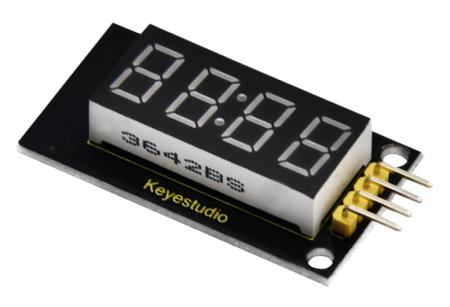
In theory, any LED 4-digit Display using a TM1637 chip can be used with the Python code that will be shown.

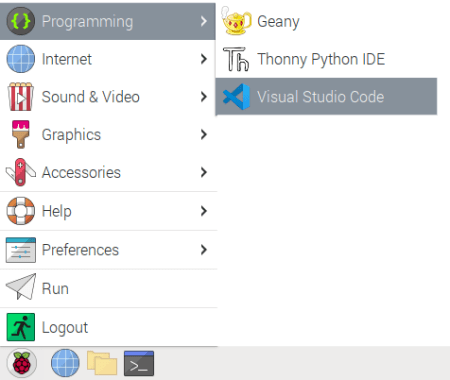
The first step is to install the TM1637 Python package containing the class that will simplify controlling the LED display quite a bit. As a side note, I strongly encourage installing VS Code on the Pi, so you can code like a pro.

Open a terminal window in VS Code and type:

pip install raspberrypi-tm1637

Once the installation is complete, you can wire the display as shown below and try the Python code that follows. It illustrates how straightforward it is to use some of the methods of the TM1637 class that come in the package.

# Importing modules and classes
import tm1637
import time
import numpy as np
from datetime import datetime
from gpiozero import CPUTemperature

# Creating 4-digit 7-segment display object
tm = tm1637.TM1637(clk=18, dio=17)  # Using GPIO pins 18 and 17
clear = [0, 0, 0, 0]  # Defining values used to clear the display

# Displaying a rolling string
tm.write(clear)
time.sleep(1)
s = 'This is pretty cool'
tm.scroll(s, delay=250)
time.sleep(2)

# Displaying CPU temperautre
tm.write(clear)
time.sleep(1)
cpu = CPUTemperature()
tm.temperature(int(np.round(cpu.temperature)))
time.sleep(2)

# Displaying current time
tm.write(clear)
time.sleep(1)
now = datetime.now()
hh = int(datetime.strftime(now,'%H'))
mm = int(datetime.strftime(now,'%M'))
tm.numbers(hh, mm, colon=True)
time.sleep(2)
tm.write(clear)

Raspberry Pi Stopwatch with LED Display

That was pretty much it for the LED display. However, let’s go for an Easter egg, where we implement a stopwatch that can be controlled by keyboard inputs. The main feature here is the use of the Python pynput package, which seamlessly enables non-blocking keyboard inputs. To get started, in a terminal window in VS Code, type:

pip install pynput

To make things more interesting, I created the class StopWatch with the following highlights:

  • First and foremost, could the entire code be written using a function (or a few functions) or even as a simple script? Yes, it could. However, using a class makes for code that is much more modular and expandable, and that can easily be integrated into other code.
  • At the center of the the StopWatch class is the execution loop method. For conciseness and readability, all other methods (with very descriptive names) are called from within this execution loop.
  • The beauty of using a class and therefore its methods is that the latter can be called from different points in the code, as it is the case of the start_watch() method, for example.
  • Finally, as the code is written as a class vs. functions, all the variables can be defined as class attributes. That really reduces complexity with input arguments, if functions were to be used instead.
# Importing modules and classes
import time
import tm1637
import numpy as np
from pynput import keyboard


class StopWatch:
    """
    The class to represent a digital stopwatch.

    **StopWatch** runs on a Raspberry PI and uses a 4-digit 7-segment display
    with a TM1637 control chip.

    The following keyboard keys are used:

        * ``'s'`` to start/stop the timer.
        * ``'r'`` to reset the timer.
        * ``'q'`` to quit the application.

    """
    def __init__(self):
        """
        Class constructor.

        """
        # Creating 4-digit 7-segment display object
        self.tm = tm1637.TM1637(clk=18, dio=17)  # Using GPIO pins 18 and 17
        self.tm.show('00 0')  # Initializing stopwatch display
        # Creating keyboard event listener object
        self.myevent = keyboard.Events()
        self.myevent.start()
        # Defining time control variables (in seconds)
        self.treset = 60  # Time at which timer resets
        self.ts = 0.02  # Execution loop time step
        self.tdisp = 0.1  # Display update period
        self.tstart = 0  # Start time
        self.tstop = 0  # Stop time
        self.tcurr = 0  # Current time
        self.tprev = 0  # Previous time
        # Defining execution flow control flags
        self.run = False  # Timer run flag
        self.quit = False  # Application quit flag
        # Running execution loop
        self.runExecutionLoop()

    def runExecutionLoop(self):
        """
        Run the execution loop for the stopwatch.

        """
        # Running until quit request is received
        while not self.quit:
            # Pausing to make CPU life easier
            time.sleep(self.ts)
            # Updating current time value
            self.update_time()
            # Handling keyboard events
            self.handle_event()
            # Checking if automatic reset time was reached
            if self.tcurr >= self.treset:
                self.stop_watch()
                self.reset_watch()
                self.start_watch()
            # Updating digital display
            self.update_display()
            # Stroing previous time step
            self.tprev = self.tcurr

    def handle_event(self):
        """
        Handle non-blocking keyboard inputs that control stopwatch.

        """
        # Getting keyboard event
        event = self.myevent.get(0.0)
        if event is not None:
            # Checking for timer start/stop
            if event.key == keyboard.KeyCode.from_char('s'):
                if type(event) == keyboard.Events.Release:
                    if not self.run:
                        self.run = True
                        self.start_watch()
                    elif self.run:
                        self.run = False
                        self.stop_watch()
            # Checking for timer reset
            elif event.key == keyboard.KeyCode.from_char('r'):
                if type(event) == keyboard.Events.Release:
                    if not self.run:
                        self.reset_watch()
                    elif self.run:
                        print('Stop watch before resetting.')
            # Checking for application quit
            elif event.key == keyboard.KeyCode.from_char('q'):
                self.quit = True
                self.tm.write([0, 0, 0, 0])
                print('Good bye.')

    def start_watch(self):
        """ Update start time. """
        self.tstart = time.perf_counter()

    def stop_watch(self):
        """ Update stop time. """
        self.tstop = self.tcurr

    def reset_watch(self):
        """ Reset timer. """
        self.tstop = 0
        self.tm.show('00 0')

    def update_time(self):
        """ Update timer value. """
        if self.run:
            self.tcurr = time.perf_counter() - self.tstart + self.tstop

    def update_display(self):
        """ Update digital display every 'tdisp' seconds. """
        if (np.floor(self.tcurr/self.tdisp) - np.floor(self.tprev/self.tdisp)) == 1:
            # Creating timer display string parts (seconds, tenths of a second)
            if int(self.tcurr) < 10:
                tsec = '0' + str(int(self.tcurr))
            else:
                tsec = str(int(self.tcurr))
            ttenth = str(int(np.round(10*(self.tcurr-int(self.tcurr)))))
            # Showing string on digital display
            self.tm.show(tsec + ' ' + ttenth)


# Running instance of StopWatch class
if __name__ == "__main__":
    StopWatch()
Event Detection in Signal Processing

Event Detection in Signal Processing

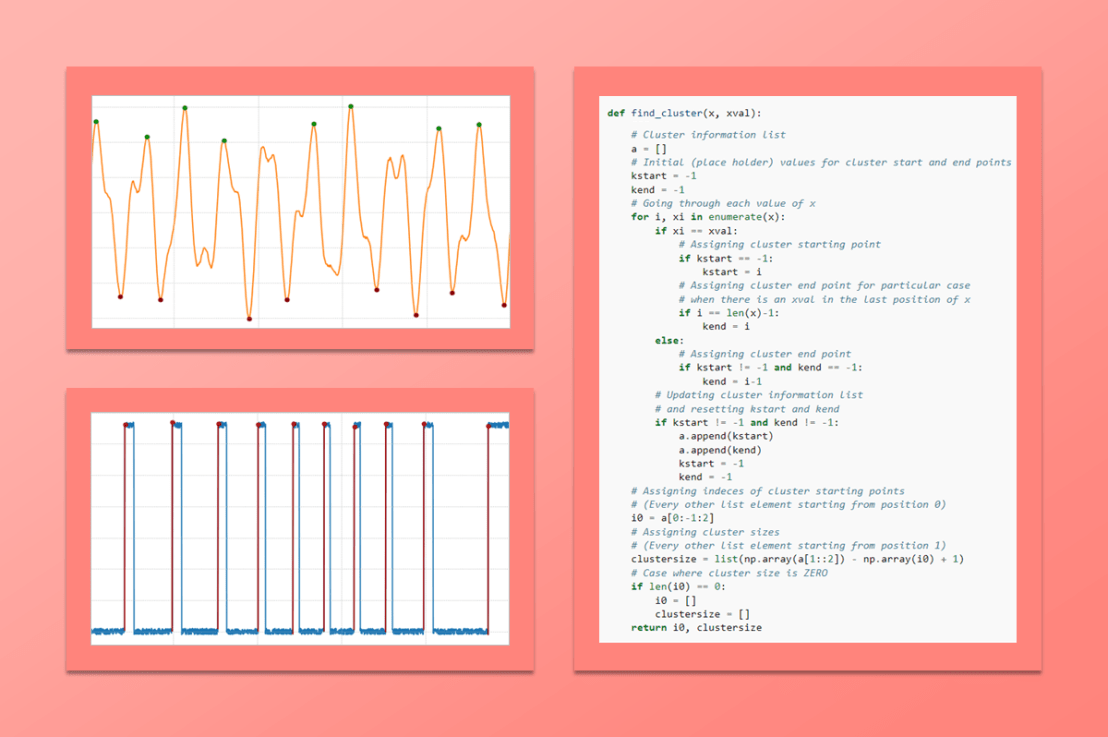
One thing I always come across when analyzing time-based data is the need to identify events such as changes in signal level, triggers, among others. Many years ago I created a MATLAB function that can find clusters of data values inside a time series. It returns the indexes of the starting point of each cluster, with the corresponding number of samples within each cluster. I have been using the Python version of the function quite a bit recently. Apparently it never gets old!

By doing the proper manipulation of the data, virtually any type of event can be detected and extracted from the time series.

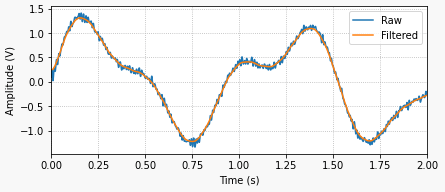
The example on the left shows a generic signal where we search for clusters of data (or events) with values greater than zero. In most cases, it’s good practice to apply a post-processing filter to the signal as the very first step of the data analysis.

The code for the python function used to find the clusters is shown below. Let’s get started by showing some basic usage and then some more interesting cases.

def find_cluster(x, xval):
    """
    Find clusters of data in an ndarray that satisfy a certain condition.


    :param x: The array containing the data for the cluster search.
    :type x: ndarray

    :param xval: The value of x that has to be satisfied for clustering.
    :type xval: integer, float


    :returns: 2-tuple

        * i0:
            The index of each cluster starting point.

        * clustersize:
            The corresponding lengths of each cluster.

    :rtype: (list, list)


    Example
    -------
        >>> x = np.int32(np.round(np.random.rand(20)+0.1))
        >>> i0, clustersize = find_cluster(x, 1)

    """
    # Cluster information list
    a = []
    # Initial (place holder) values for cluster start and end points
    kstart = -1
    kend = -1
    # Going through each value of x
    for i, xi in enumerate(x):
        if xi == xval:
            # Assigning cluster starting point
            if kstart == -1:
                kstart = i
            # Assigning cluster end point for particular case
            # when there is an xval in the last position of x
            if i == len(x)-1:
                kend = i
        else:
            # Assigning cluster end point
            if kstart != -1 and kend == -1:
                kend = i-1
        # Updating cluster information list
        # and resetting kstart and kend
        if kstart != -1 and kend != -1:
            a.append(kstart)
            a.append(kend)
            kstart = -1
            kend = -1
    # Assigning indeces of cluster starting points
    # (Every other list element starting from position 0)
    i0 = a[0:-1:2]
    # Assigning cluster sizes
    # (Every other list element starting from position 1)
    clustersize = list(np.array(a[1::2]) - np.array(i0) + 1)
    # Case where cluster size is ZERO
    if len(i0) == 0:
        i0 = []
        clustersize = []
    return i0, clustersize

The example in the doc string above generates a random array x of zeros and ones, in which we use the function to find the clusters of values equal to 1. By running it, one should get something like the results shown below. i0 contains the starting indexes of the clusters of 1s and clustersize contains the number of elements in each cluster.

>>> x = np.int32(np.round(np.random.rand(20)+0.1))
>>> i0, clustersize = find_cluster(x, 1)

>>> x
array([1, 1, 1, 0, 1, 0, 1, 1, 1, 1, 1, 1, 0, 1, 1, 0, 0, 1, 1, 0])

>>> i0
[0, 4, 6, 13, 17]

>>> clustersize
[3, 1, 6, 2, 2]

Finding Signal Peaks

Let’s use the signal from the top of the post and find the signal peaks above 1 and below -1, as illustrated on the left.

The code snippet used to find the peaks as well as the peak values can be seen below. The complete code for it and for all the examples in this post can be found here.

# Finding positive peaks greater than 1
imax = []
icl, ncl = find_cluster(x>1, 1)
for ik, nk in zip(icl, ncl):
    imax.append(ik+np.argmax(x[ik:ik+nk])-1)
# Finding negative peaks smaller than 1
imin = []
icl, ncl = find_cluster(x<-1, 1)
for ik, nk in zip(icl, ncl):
    imin.append(ik+np.argmin(x[ik:ik+nk])-1)
>>> np.round(x[imax], 2)
array([1.3 , 1.03, 1.47, 1.06, 1.18, 1.53, 1.21, 1.19])

>>> np.round(x[imin], 2)
array([-1.25, -1.19, -1.53, -1.24, -1.07, -1.47, -1.08, -1.3 ])

Finding Trigger Edges

find_cluster can be very useful for determining trigger events in a recorded time series. Unlike most other signals, I usually do not filter a trigger signal, since having a sharp rising edge (at the expense of noise) is critical for a more exact event determination.

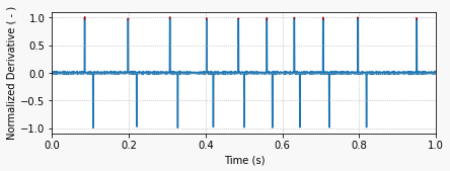
The derivative of the trigger signal is then used to determine the rising edges, as shown in the second plot on the left. A threshold value of 0.5 for the derivative (normalized by its maximum value) can be used to locate the trigger edges.

The code snippet below shows how to do it for a fictitious recorded data set.

# Calculating and normalizing trigger signal derivative
dxdt = np.gradient(x, t)
dxdt = dxdt/np.max(dxdt)

# Finding trigger event times using derivative theshold
icl, ncl = find_cluster(dxdt>0.5, 1)
ttrigger = t[icl]
>>> ttrigger
array([0.0845, 0.1975, 0.3065, 0.402 , 0.485 , 0.559 , 0.6305, 0.7055, 0.796 , 0.9495])
DC Motor Position Tracking

DC Motor Position Tracking

At the end of the post Motor Position Control with Raspberry Pi, we saw that there are different ways to move a motor shaft between two angular positions. In this post, we will take a deeper look into three types of paths between an initial and a final position. While I’ll be exploring the concept using a system with one degree of freedom, with proper normalization and parametrization, the idea can be applied to any trajectory between two points in space.

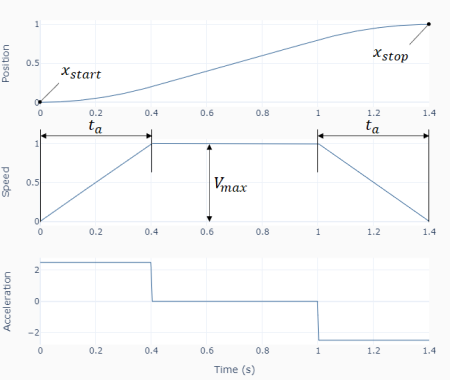
The first observation to be made is that the path that our closed-loop system is going to follow is calculated before hand, i.e., the initial and final positionsand(shown in the diagram on the left), as well as other parameters that define the trajectory, are known before the position tracking is executed.

In our case, we’ll use the acceleration time(at the beginning and end of the motion) and the maximum allowed velocityas the additional parameters that are sufficient to fully determine the path.

Maximum velocity and acceleration time (or conversely the maximum acceleration) are a reasonable choice, since they are related to the physical limitations of the system.

The total motion time is therefore automatically determined once the four parameters above are specified. Even though there are different ways to go about calculating the path, I’ll use the velocity profile as the primary trace, with position and acceleration being calculated respectively as the integral and derivative of the velocity. Let’s then go over the three velocity profiles for this post: linear, quadratic, and trigonometric.

Linear Speed Profile

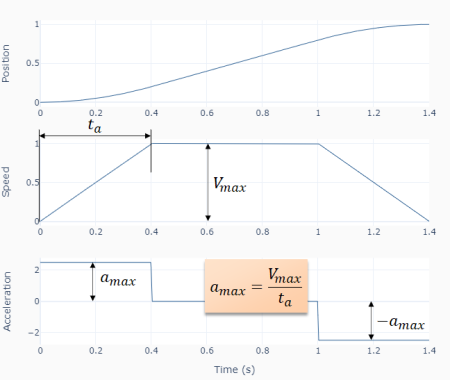
Using the illustration below it’s not too difficult to arrive at the following three equations that describe the velocity as a function of time.

The timeat maximum speed is given by:

Where it can be calculated by using the fact that the area under the speed trace is equal to .

As mentioned before, and can be used interchangeably, where, in this case, . The Python function below shows one possible implementation of the path calculation, where the position and acceleration traces are calculated through numerical integration and derivative, respectively. I found this approach to be more robust to the path discretization, specially at the speed profile transitions.


def path_linear(xstart, xstop, vmax, ta, nstep=1000):
    #
    # Adjusting velocity based on end points
    if xstop < xstart:
        vmax = -vmax
    # Assigning time at max velocity
    if (xstop-xstart)/vmax > ta:
        # There's enough time for constant velocity section
        tmax = (xstop-xstart)/vmax - ta
    else:
        # There isn't (triangular velocity profile)
        tmax = 0
        vmax = (xstop-xstart)/ta
    # Assigning important time stamps
    t1 = ta  # End of acceleration section
    t2 = ta + tmax  # End of constant velocity section
    t3 = 2*ta + tmax  # End of motion (deceleration) section
    # Creating time array for path discretization
    t = np.linspace(0, t3, nstep+1)
    # Finding transition indices
    i1 = np.nonzero(t<=t1)
    i2 = np.nonzero((t>t1)&(t<=t2))
    i3 = np.nonzero(t>t2)
    # Calculating accelereration section array
    v1 = vmax/ta*t[i1]
    # Calculating constant velocity section array
    if len(i2[0]) > 0:
        v2 = np.array([vmax]*len(i2[0]))
    else:
        v2 = np.array([])
    # Calculating deceleration section array
    v3 = vmax - vmax/ta*(t[i3]-t2)
    # Concatenating arrays
    v = np.concatenate((v1, v2, v3))
    # Calculating numeric integral (position)
    x = xstart + t[-1]/nstep * np.cumsum(v)
    # Calculating numeric derivative (acceleration)
    a = np.gradient(v, t)
    # Returning time, position, velocity, and acceleration arrays
    return t, x, v, a

Quadratic Speed Profile

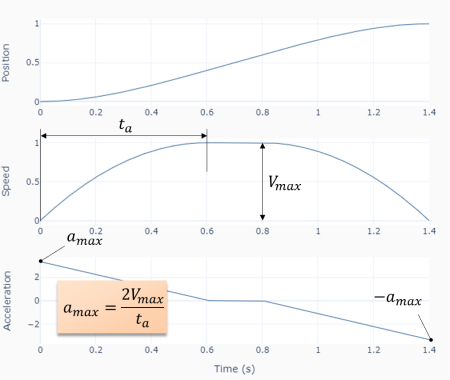
Unlike the linear speed profile, which uses constant acceleration, the quadratic (or parabolic) speed profile uses linearly changing acceleration at the beginning and end of the motion. The equations for this type of trajectory are shown below.

An easy way to obtain the first and third velocity equations above is by writing the corresponding acceleration functions and integrating them.

Similarly to the linear case, the time at maximum speed can be obtained from the area under the velocity curve. (Tip: integrate the first velocity equation and evaluate it at, multiply the result by 2 to account for the deceleration portion, and add the area of the rectangle under)

The Python function for this case follows the same structure as the previous one. You can find it on my GitHub page.

Trigonometric Speed Profile

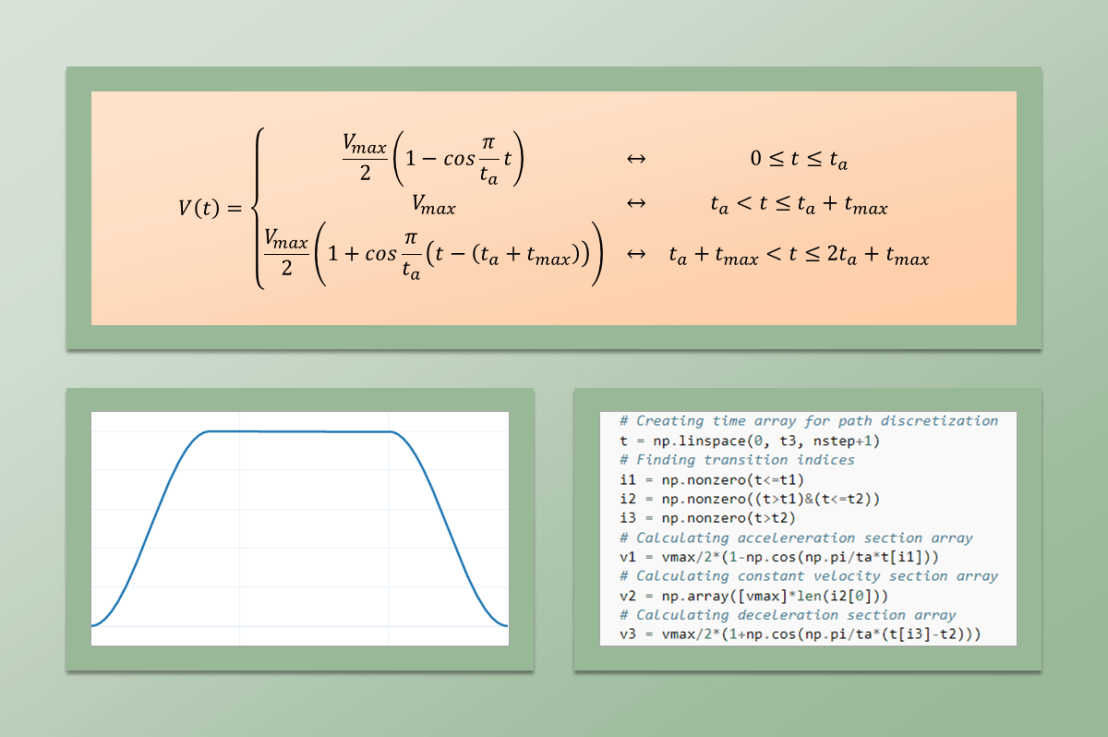
The third profile type uses a cosine function for the velocity during the acceleration and deceleration phases of the trajectory. By choosing the appropriate function, it is possible to add an interesting feature to this last profile type: zero initial and final accelerations.

Also through integration of the velocity function and knowing that the area under the curve is, it is possible to solve for the time at maximum velocity:

Like the two previous cases, the Python function that implements this type of path calculation is located on the GitHub page.

Practical Application for Position Tracking

When it comes to choosing the path calculation method, two factors have to be kept in mind: how fast do we want to (or can) go from the initial to the final position and how much acceleration change (jerk) do we want to apply to the system. One good way to go about it is to test all three and quantify how the overall closed-loop system behaves.

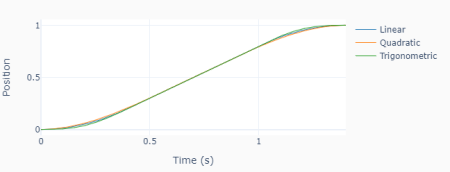
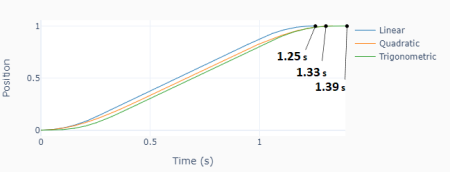
Just to explore a little bit, the plot on the left shows an overlay of the three types of path for the examples shown above. In this scenario, the maximum velocity is limited to 1 (m/s, for example) and the total time set to 1.4s, by proper choice of. Even though the acceleration profiles are very distinct, the difference between the three types of trajectory is visually very subtle.

In contrast, if we now limit both the maximum velocity to 1 m/s and the maximum acceleration to 4 m/s2, the total motion duration is fairly different. The linear velocity profile is the fastest one (at the expense of having the largest jerk). Conversely, the trigonometric method takes the longest time with the least amount of jerk.

Let’s use the same setup with a Raspberry Pi and a DC motor that we had in the post Motor Position Control with Raspberry Pi to test the different types of paths for the positioning of the DC motor shaft. The Python program below shows how the quadratic path is generated prior to the execution loop and then sampled during the execution loop.

The full code with the plotting features and the module path.py, containing the three types of path calculation functions, can be found here.

# Importing modules and classes
import time
import numpy as np
from scipy.interpolate import interp1d
from path import path_quad
from gpiozero_extended import Motor, PID

# Setting path parameters
thetastart = 0  # Start shaft angle (rad)
thetaend = 3*np.pi  # End shaft angle (rad)
wmax = 4*np.pi  # Max angular speed (rad/s)
ta = 0.45  # Acceleration time (s)
tsample = 0.01  # Sampling period (s)

# Calculating path
t, x, _, _ = path_quad(thetastart, thetaend, wmax, ta)
f = interp1d(t, 180/np.pi*x)  # Interpolation function
tstop = t[-1]  # Execution duration (s)

# Creating PID controller object
kp = 0.036
ki = 0.260
kd = 0.0011
taupid = 0.01
pid = PID(tsample, kp, ki, kd, tau=taupid)

# Creating motor object using GPIO pins 16, 17, and 18
# (using SN754410 quadruple half-H driver chip)
# Integrated encoder on GPIO pins 24 and 25.
mymotor = Motor(
    enable1=16, pwm1=17, pwm2=18,
    encoder1=24, encoder2=25, encoderppr=300.8)
mymotor.reset_angle()

# Initializing variables and starting clock
thetaprev = 0
tprev = 0
tcurr = 0
tstart = time.perf_counter()

# Running execution loop
print('Running code for', tstop, 'seconds ...')
while tcurr <= tstop:
    # Pausing for `tsample` to give CPU time to process encoder signal
    time.sleep(tsample)
    # Getting current time (s)
    tcurr = time.perf_counter() - tstart
    # Getting motor shaft angular position
    thetacurr = mymotor.get_angle()
    # Interpolating set point angle at current time step
    if tcurr <= tstop:
        thetaspcurr = f(tcurr)
    # Calculating closed-loop output
    ucurr = pid.control(thetaspcurr, thetacurr)
    # Assigning motor output
    mymotor.set_output(ucurr)
    # Updating previous values
    thetaprev = thetacurr
    tprev = tcurr

print('Done.')
# Stopping motor and releasing GPIO pins
mymotor.set_output(0, brake=True)
del mymotor

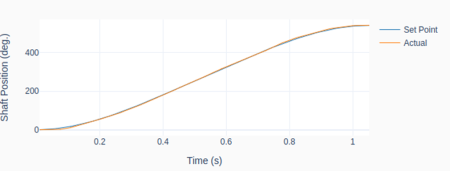
The plots show the set point vs. actual shaft position for a 450 degrees rotation, using the quadratic velocity path.

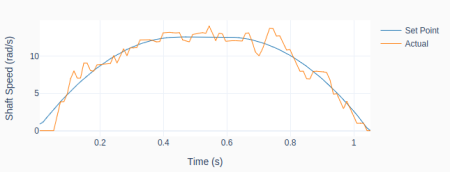
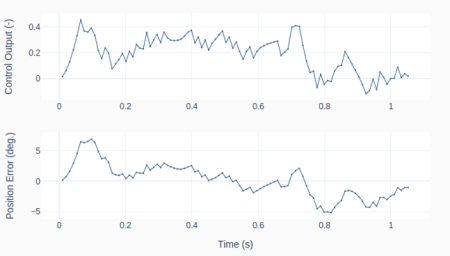
The derivative of the signal, i.e., the shaft speed, is a useful gage to see how well the closed-loop system can follow the trajectory. The position error between set point and measured value is also a good metric. In this case, it is within +/- 5 degrees with an RMSE (Root Mean Squared Error) of about 2.5 degrees. Although not a stellar result, it’s not too bad, given the budget hardware and simple control (PID) that were used.

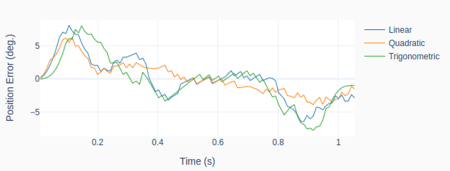
Finally, the graph at the bottom shows a comparison of the position tracking error for the three types of path explored in this post for the same 450 degree rotation. The average RMSE values for the linear, quadratic, and trigonometric speed profiles were respectively 3.3, 2.4, and 3.6 degrees.

Even though the trigonometric profile has the smoothest acceleration, it was outperformed by the other two for this particular system.

The trigonometric one is usually beneficial for dynamic systems that are more susceptible to vibration when subjected to a more “jerky” path profile.

Digital PID Controller

Digital PID Controller

Closed-Loop PID (Proportional Integral Derivative) controllers are quite popular when it comes to regulating a dynamic system that has to follow a desired set point. When compared to other types of controllers, it has the advantage of requiring little to no knowledge about the system plant for it to be designed successfully.

Before we start, the idea of this post isn’t to go over the theory of control systems. The goal is to talk about some of the characteristics of a PID controller and how to go about implementing a discrete (or digital) one with some additional features to make it more robust. In the end, we will have a Python class that represents a PID, which can be used in an execution loop to control a process or a dynamic system.

The diagram below illustrates a closed-loop system, where all the signals are represented in the time domain. The three terms of the PID are shown separately, where the controller output valueis the sum of the individual term contributions. The regulation of the plant outputto the desired set point valueis achieved as the controller continuously brings the errorbetween the set point and the plant output to zero.
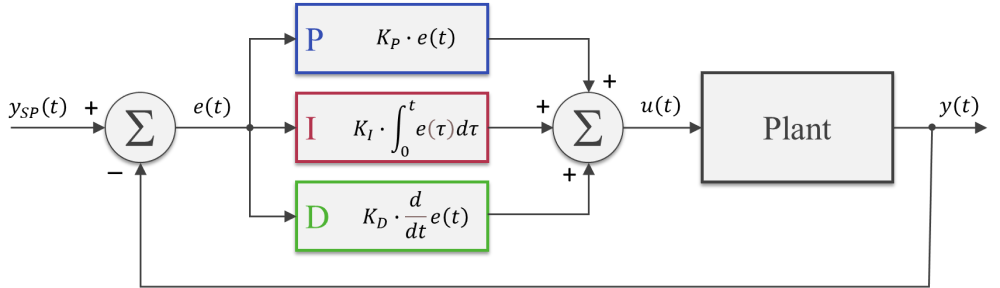
The PID gains,andcan be tuned so that the closed-loop dynamic behavior ofmeets the desired response requirements. In broad terms, the proportional term reacts directly to the current value of the error between set point and desired output. Usually, the proportional term by itself cannot bring the error to zero (since it relies on the existence of an error to produce a controller output). That’s where the integral term comes into the picture: because it takes into account the accumulated error (or the integrated error) it will compensate the smallest deviations. Over time the accumulation of the deviation will be large enough to cause a controller output. The proportional and integral terms combined can bring the error to zero (for a steady state input) for most dynamic systems.
The derivative term reacts to the rate of change of the error and can be effective for sudden set point changes, by helping reduce the response overshoot. In practical applications, using a derivative term can be tricky due to its sensitivity to noise that’s typically present in the measurement of the plant output.

As a side note, the plots throughout this post were generated using MATLAB and Simulink, where the corresponding m-files and Simulink model can be found on my GitHub page. I should emphasize that I did spend some time exploring and trying to use the Python Control Systems package. However, nothing can beat Simulink when it comes to quickly representing and simulating dynamic systems. Especially when non-linearities are being modelled. Spending $100 on that MATLAB student license might be something to think about.

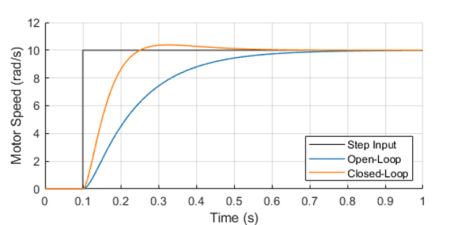
One way to analyze the performance of a control system (in our case a PID controller) is by measuring the closed-loop system’s response to a step change of the set point.

Because in future posts we will be doing closed loop control of small low-budget DC motors, let’s use as a plant a somewhat fictitious motor with an integral gear box. The plot shows the closed-loop system response in contrast with the open-loop response.

The controller output (armature voltage), as well as the individual contribution of each of the PID terms, is also shown. Observe how the proportional and derivative terms go to zero as the response approaches its steady-state value, leaving the integral term in charge of keeping the errorat zero.

It’s important to mention that both the open-loop as well as the closed-loop responses end up at the same final armature voltage of 2.8 V.

For our DC motor model, the armature voltage required to produce a motor speed output of 10 rad/s without any external load is 2.8 V. In the case of the open-loop system, I use that knowledge to apply a step input of 2.8 V to the motor. On the other hand, the step input to the closed-loop system is in fact the desired speed output of 10 rad/s. The PID controller will apply whatever armature voltage is needed to follow the speed set point, even when the manufacturing variability of the motor or other sources of error are present. That’s the first takeaway that most people working with control systems are very familiar with. The second point I want to make is that the improved response time, compared to the open-loop system, can only be achieved because the controller has an excess output capability (up to 12 V in our motor model) that can be tapped into at the moment of the step change.

Without getting into stability margins, the closed-loop system can be just as fast as you want. The issue at hand becomes how much do you want to “oversize” your system so it can obtain that stellar dynamic response. Understanding you engineering requirements is key when choosing the right hardware “size” for the desired closed-loop system behavior.

Discrete PID Implementation

The most basic digital PID implementation can be obtained from taking the derivative of the controller output equation

and using backward difference (with sampling period) to approximate the derivatives. The difference equation below can be obtained by following the steps shown here.

This implementation has two notable advantages:

  • Because the previous output value is taken into account for the output calculation, the controller can be seamlessly started from an open-loop condition by assigning the current open-loop output value to the very first .
  • The PID gains,andobtained from the design of a continuous controller are still valid in its discrete representation (provided a fast enough sampling periodis used).

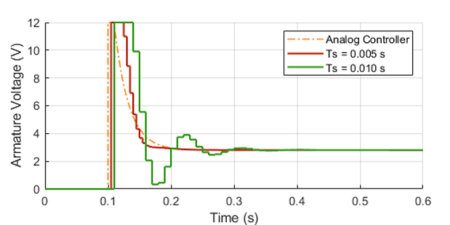
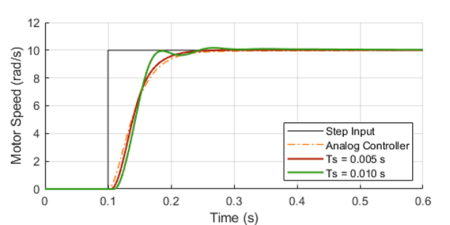
The graphs below show the closed-loop response of the analog plant (DC motor) as well as the corresponding output of the discrete controller for a sampling period of 0.01 and 0.005 seconds. The equivalent analog controller using the same PID gains is also shown as a reference. Although not on the graphs, the discrete PID with a sampling period of 0.001 seconds produces virtually the same response as the continuous one.

As it can be seen in the graphs, the lower sampling period caused the plant output to oscillate. Further increasingwould increase the amplitude of the oscillations, eventually making the system unstable. This well known behavior is caused by the discretization of the controller, where the plant basically behaves in an open loop fashion in between sample points. Even though this problem can be approached mathematically, tackling it using a simulation tool can provide valuable insight on the compromises between sampling period and PID gains, during the initial design of the controller.

Before we put our digital PID into a Python class, let’s go over a few features that can make the controller more robust for practical applications.

Saturation and Anti-Windup

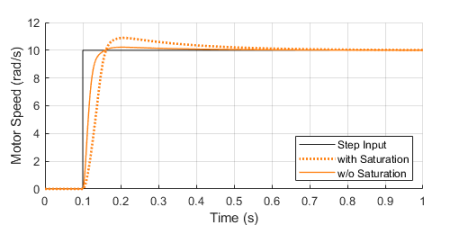
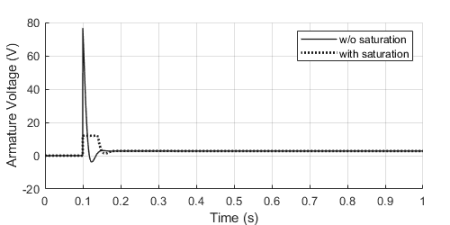
If we were to use some very aggressive gains for our motor PID controller, the step response could be further improved as shown with the solid trace below. You’ll also notice an unpractical armature voltage spike over 60 V! In reality, the controller output will saturate at its maximum (or minimum) output capability, in our case 12 V, producing the dotted line traces instead.

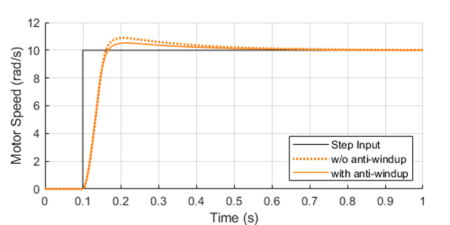
Once the controller output is saturated, the integral term compensation keeps increasing in an attempt to reduce the accumulated error. By the time the controller “comes back” from the saturation state, the integral term is “wound-up”, resulting in an overshoot of the response, as it can be seen by contrasting the dotted and solid orange lines above.

By implementing anti-windup logic in the discrete controller, the overshoot caused by potential saturation can be reduced, as shown on the left.

The basic idea is to turn off the integral term of the PID (as we’ll see in the Python class at the end) every time an upper or lower saturation limit is exceeded. This is a common improvement used in digital PID controllers.

Feed-Forward and Derivative Term Filtering

Another useful improvement that can be made to our digital PID is to allow for a feed-forward signalin its implementation. The feed-forward term reduces the contribution of the controller output signal , making the system less susceptible to noise in the measurement of the plant output used to calculate the error.
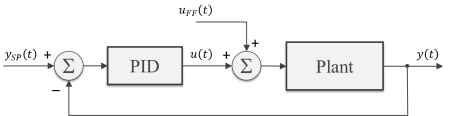
While not always possible, in some special situations, we can pre-calculate the feed-forward signal as a function of time and add it to controller output as shown in the block diagram. Typical applications involve a known “control path” such as a robotic manipulator (with pre-programmed motion paths) or a vehicle’s cruise control (on a highway with known topology).

As I mentioned earlier in this post, the derivative term of the PID is quite sensitive to noise in the calculated error signal, which primarily comes from the transducers used to measure the plant output. One way to help mitigate this effect is the addition of a low-pass filter to the output of the derivative term inside the controller. Let’s use my favorite first-order digital filter, given by the difference equation below, whereis the derivative term output andis the corresponding filtered output signal.

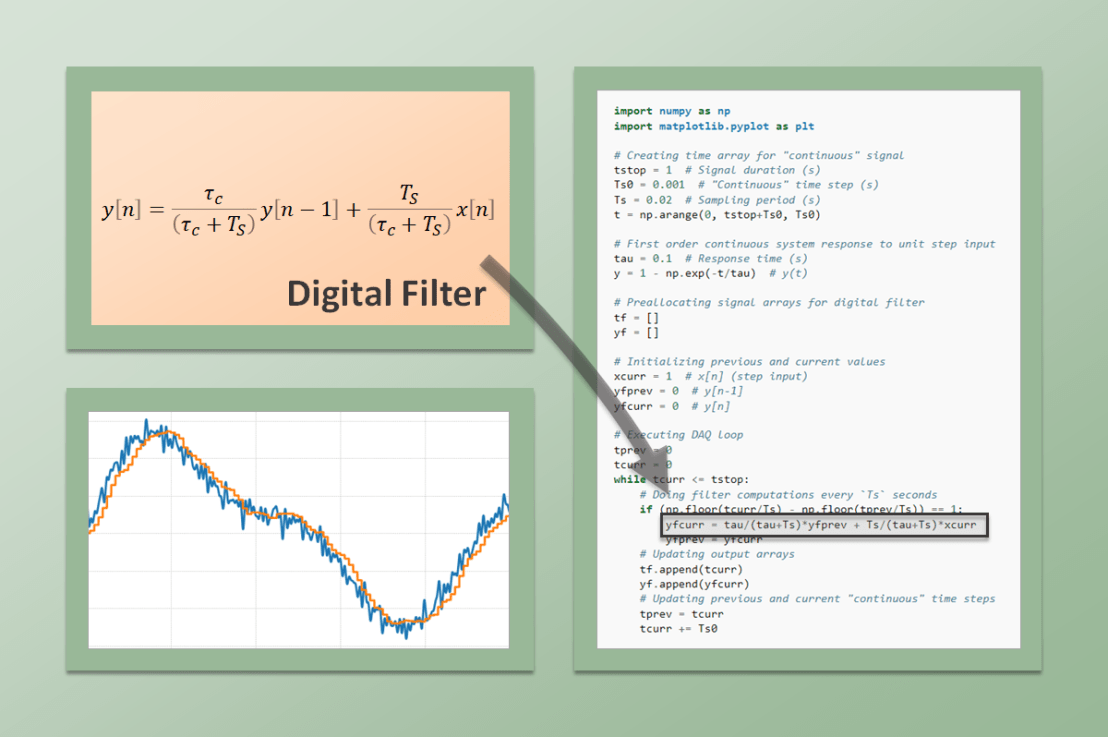
PID Python Class

Finally, it’s time to put it all together inside a Python class. If you go through the code below, you’ll be able to identify all the components that were discussed in the previous three sections. The PID class should be instantiated before entering the execution loop, while the control method is called every time step inside the execution loop. In my next post we will use this class to control the speed of a small DC motor.

class PID:
    def __init__(self, Ts, kp, ki, kd, umax=1, umin=-1, tau=0):
        #
        self._Ts = Ts  # Sampling period (s)
        self._kp = kp  # Proportional gain
        self._ki = ki  # Integral gain
        self._kd = kd  # Derivative gain
        self._umax = umax  # Upper output saturation limit
        self._umin = umin  # Lower output saturation limit
        self._tau = tau  # Derivative term filter time constant (s)
        #
        self._eprev = [0, 0]  # Previous errors e[n-1], e[n-2]
        self._uprev = 0  # Previous controller output u[n-1]
        self._udfiltprev = 0  # Previous derivative term filtered value

    def control(self, ysp, y, uff=0):
        #
        # Calculating error e[n]
        e = ysp - y
        # Calculating proportional term
        up = self._kp * (e - self._eprev[0])
        # Calculating integral term (with anti-windup)
        ui = self._ki*self._Ts * e
        if (self._uprev+uff >= self._umax) or (self._uprev+uff <= self._umin):
            ui = 0
        # Calculating derivative term
        ud = self._kd/self._Ts * (e - 2*self._eprev[0] + self._eprev[1])
        # Filtering derivative term
        udfilt = (
            self._tau/(self._tau+self._Ts)*self._udfiltprev +
            self._Ts/(self._tau+self._Ts)*ud
        )
        # Calculating PID controller output u[n]
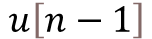
        u = self._uprev + up + ui + udfilt + uff
        # Updating previous time step errors e[n-1], e[n-2]
        self._eprev[1] = self._eprev[0]
        self._eprev[0] = e
        # Updating previous time step output value u[n-1]
        self._uprev = u - uff
        # Updating previous time step derivative term filtered value
        self._udfiltprev = udfilt
        # Limiting output (just to be safe)
        if u < self._umin:
            u = self._umin
        elif u > self._umax:
            u = self._umax
        # Returning controller output at current time step
        return u
Digital Filtering

Digital Filtering

After a continuous signal goes through an analog-to-digital conversion, additional digital filtering can be applied to improve the signal quality. Whether the signal is being used in a real-time application or has been collected for a later analysis, implementing a digital filter via software is quite straightforward. We already saw them being casually used in some of my previous posts, such as MCP3008 with Raspberry Pi. Now, let’s go over these types of filters in more detail. For the examples, we will be using the signal processing functions from the the SciPy Python package.

One of the drawbacks of digital filtering (or analog filtering, for that matter) is the introduction of a phase delay in the filtered signal.

The plots on the left illustrate what an actual filtered signal and its phase lag would look like (top), in contrast with an ideal filtered signal with no lag (bottom). While the ideal situation cannot be achieved with real-time signal processing, it can be achieved when processing signals that are already sampled and stored as a discrete sequence of numerical values.

Since the sequence from start to finish is available, the idea is to filter it once (causing a phase shift) and then filter the resulting sequence backwards (causing a phase shift again). Since the filtering is done both forward and backwards, the phase shifts cancel each other, thus resulting in a zero-phase filtered signal!

To see how it’s done, check out the filtfilt function and the very good application examples on the SciPy documentation. You can also go for the code used to generate the plots above on my GitHub page. I should note that I use filtfilt all the time in my signal processing endeavors. There’s a lot of information that can be extracted from a signal after you clean it up a little bit. If the time alignment between events is critical, avoiding a phase shift is the way to go.

Before we get into the real-time application of digital filters, let’s talk briefly about how they’re implemented. I’ll focus on filters that can be described as the difference equation below:

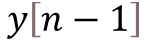
whereis the input sequence (raw signal) andis the output sequence (filtered signal). Before you abandon this webpage, let me rewrite the equation so we can start bringing it to a more applicable form. Since the idea is to find the outputas a function of its previous values and the input, we can go with:

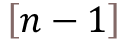
It’s common to normalize the coefficients so . Also, for simplicity, consider a first order filter which, in terms of difference equations, only depends on the values of the current and last time steps, or and . Thus:

So, to build a first-order low-pass digital filter, all we need to do is determine the coefficients , and. Luckily for us, the SciPy MATLAB-Style filter design functions return those coefficients, reducing our task to just the implementation of the filter using Python. Before we go over a couple of code examples, let’s examine a first-order filter that I use quite a bit.

Backward Difference Digital Filter

Going from the continuous domain to the discrete domain involves a transformation where we approximate a continuous variable by its discrete equivalent. I will start with a first-order low-pass filter, by analyzing its continuous behavior, more specifically the response to a unit step input.

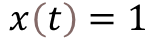
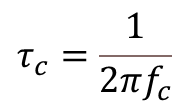
The continuous system response to the constant input is given by , whereis the response time of the filter and is related to the filter cutoff frequencyby:

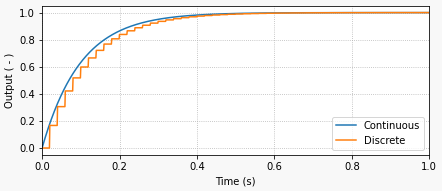
The response time of the filter is the time it takes for the output to reach approximately 63 % of the final value. In the case of the graph above, the response time is 0.1 seconds. If you’re wondering where that comes from, just calculate the system response using .

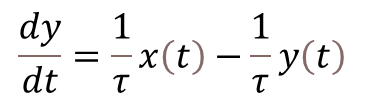
The differential equation that corresponds to the first order continuous system in question is:

And here is where our discrete approximation ofusing backward difference (with sampling period) comes into play:
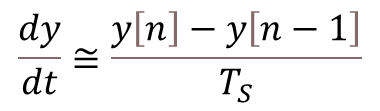
By also transformingandinto their discrete counterpartsand, we can arrive to the difference equation below, which represents the first-order low-pass digital filter, where we used backward difference to approximate. Remember that and are the discrete current and previous time steps.

Finally, solving forgives us an equation very similar to the one we saw at the end of the previous section. Note that the coefficients andare a function of the sampling rate and the filter response time (in this particular case).

What I like about this filter implementation is that it’s fairly straightforward to see that the outputis a weighed average of its previous valueand the current input value. Furthermore, the smaller the response time (), the faster the filter is (higher cutoff frequency) and the more it follows the input value. Conversely, the slower the filter (), the more the output takes into account the previous value.

The Python code below shows how to implement this filter by placing it inside an execution loop and running a step input excitation through it. It will produce the plot shown at the beginning of this section. I invite you to experiment with different response times (cutoff frequencies) and sampling periods.

import numpy as np
import matplotlib.pyplot as plt

# Creating time array for "continuous" signal
tstop = 1  # Signal duration (s)
Ts0 = 0.001  # "Continuous" time step (s)
Ts = 0.02  # Sampling period (s)
t = np.arange(0, tstop+Ts0, Ts0)

# First order continuous system response to unit step input
tau = 0.1  # Response time (s)
y = 1 - np.exp(-t/tau)  # y(t)

# Preallocating signal arrays for digital filter
tf = []
yf = []

# Initializing previous and current values
xcurr = 1  # x[n] (step input)
yfprev = 0  # y[n-1]
yfcurr = 0  # y[n]

# Executing DAQ loop
tprev = 0
tcurr = 0
while tcurr <= tstop:
    # Doing filter computations every `Ts` seconds
    if (np.floor(tcurr/Ts) - np.floor(tprev/Ts)) == 1:
        yfcurr = tau/(tau+Ts)*yfprev + Ts/(tau+Ts)*xcurr
        yfprev = yfcurr
    # Updating output arrays
    tf.append(tcurr)
    yf.append(yfcurr)
    # Updating previous and current "continuous" time steps
    tprev = tcurr
    tcurr += Ts0

# Creating Matplotlib figure
fig = plt.figure(
    figsize=(6.3, 2.8),
    facecolor='#f8f8f8',
    tight_layout=True)
# Adding and configuring axes
ax = fig.add_subplot(
    xlim=(0, max(t)),
    xlabel='Time (s)',
    ylabel='Output ( - )',
    )
ax.grid(linestyle=':')
# Plotting signals
ax.plot(t, y, linewidth=1.5, label='Continuous', color='#1f77b4')
ax.plot(tf, yf, linewidth=1.5, label='Discrete', color='#ff7f0e')
ax.legend(loc='lower right')

SciPy Butterworth Digital Filter

The non-functional code snippet below shows how to import the SciPy signal processing module an use it to create a first-order digital Butterworth filter. Note that the implementation of the filter in the DAQ execution loop is very similar to what was done in the example code above. In this particular case however, you should be able to immediately identify the difference equation for the filter

where the arrays containing the coefficients , and, are the output of the SciPy function signal.butter for the corresponding cutoff frequency and discrete sampling period.

# Importing SciPy module
from scipy import signal

#
# Doing other initialization
#

# Discrete signal parameters
tsample = 0.01  # Sampling period for code execution (s)
fs = 1/tsample  # Sampling frequency (Hz)

# Finding a, b coefficients for digital butterworth filter
fc = 10  # Low-pass cutoff frequency (Hz)
b, a = signal.butter(1, fc, fs=fs)

# Preallocating variables
xcurr = 0  # x[n]
ycurr = 0  # y[n]
xprev = 0  # x[n-1]
yprev = 0  # y[n-1]

tprev = 0
tcurr = 0
# Executing DAQ loop
while tcurr <= tstop:
    # Doing I/O tasks every `tsample` seconds
    if (np.floor(tcurr/tsample) - np.floor(tprev/tsample)) == 1:
        # Simulating DAQ device signal acquisition
        xcurr = mydaq.value
        # Filtering signal (digital butterworth filter)
        ycurr = -a[1]*yprev + b[0]*xcurr + b[1]*xprev
        yprev = ycurr
    # Updating previous values
    xprev = xcurr
    tprev = tcurr
    # Incrementing time step
    tcurr += Ts0

Finally, as I mentioned at the top, you can implement higher order or different types of filters. Take a look at the signal.iirnotch filter, which is a very useful design that removes specific frequencies from the original signal, such as the good old 60 Hz electric grid one.

Encoder with Raspberry Pi

Encoder with Raspberry Pi

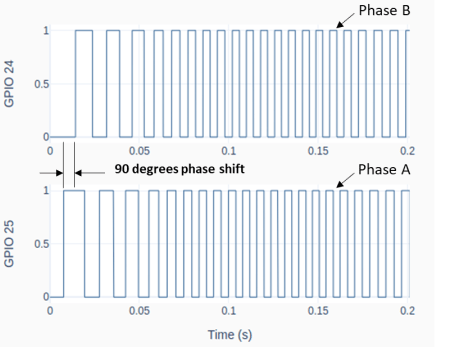
An encoder or, more specifically, a rotary incremental encoder is a device that can be used to determine incremental changes of the angular position of a rotating shaft. One of the possible hardware constructions is based on a slotted disk attached to the shaft and a pair of optical sensors with a physical offset. The detection of “dark/bright” transitions, as the shaft rotates and the slots pass in front of the sensors, is converted by an electronic circuit into two pulse trains that have a phase shift of 90 degrees between them.

The two signals that are generated by the encoder have to be then processed by a DAQ device, so that the angular increment (or decrement) of the shaft can be determined by “counting the high/low edge transitions” of the two signals. Some DAQ devices have a hardware implementation to deal with encoder signals, thus allowing for much higher shaft speeds. As it is the case of a LabJack.

The Raspberry Pi, on the other hand, doesn’t have the capability to deal with pulse train inputs via hardware. Therefore, it has to rely on a software implementation to do the “edge counting”. We will focus on the class RotaryEncoder in GPIO Zero, which is quite good and very straightforward to use.

To follow along the contents of this post, you may want to review my previous post (H-Bridge and DC Motor with Raspberry Pi), since a motor with an integrated encoder will be used in the examples and, by the end, we will expand the Motor class by adding encoder input capability to it.

From a nomenclature stand point, encoders that produce a pair of square waves (pulse trains) with a 90-degree phase shift are also known as quadrature encoders. However, to take full advantage of this type of encoder, i.e., count all 4 edge transitions during the rotation through one marker (or slot), a hardware-based edge detection is usually required. So, an encoder disc with 45 slots would give a count of 180 effective pulses per revolution (PPR) for a resolution of 2 degrees (360/180). When using a software-based edge detection, the same encoder would have 45 PPR and a resolution of 8 degrees.

The figure below shows typical connections for a Raspberry Pi. Note that the A and B phases are interchangeable. If the pulse count is decreasing when you’re expecting a positive rotation, just swap the connections of the phase wires.

Checking the PPR of the Encoder

After the encoder is connected to the Pi, as shown above, you can use the following Python code to check if the number of Pulses Per Revolution is what you’re expecting. A couple of things will factor into the PPR value.

If the motor has a gear box, the “advertised” PPR value might be incorrect. First of all, understand if the number refers to the quadrature-based value or the marker-based value. Then check if the number is taking into account the gear ratio of the box.

In my case, I am using a motor with a 16 PPR encoder (advertised as a 64 based on a full quadrature implementation) and a gear ratio of 18.8:1. That gives a value of 16 x 18.8 = 300.8 PPR. Ultimately, you can use the sample program below and turn the output shaft by hand to see what you get!

# Importing modules and classes
import time
import numpy as np
from gpiozero import RotaryEncoder

# Assigning parameter values
ppr = 300.8  # Pulses Per Revolution of the encoder
tstop = 20  # Loop execution duration (s)
tsample = 0.02  # Sampling period for code execution (s)
tdisp = 0.5  # Sampling period for values display (s)

# Creating encoder object using GPIO pins 24 and 25
encoder = RotaryEncoder(24, 25, max_steps=0)

# Initializing previous values and starting main clock
anglecurr = 0
tprev = 0
tcurr = 0
tstart = time.perf_counter()

# Execution loop that displays the current
# angular position of the encoder shaft
print('Running code for', tstop, 'seconds ...')
print('(Turn the encoder.)')
while tcurr <= tstop:
    # Pausing for `tsample` to give CPU time to process encoder signal
    time.sleep(tsample)
    # Getting current time (s)
    tcurr = time.perf_counter() - tstart
    # Getting angular position of the encoder
    # roughly every `tsample` seconds (deg.)
    anglecurr = 360 / ppr * encoder.steps
    # Printing angular position every `tdisp` seconds
    if (np.floor(tcurr/tdisp) - np.floor(tprev/tdisp)) == 1:
        print("Angle = {:0.0f} deg".format(anglecurr))
    # Updating previous values
    tprev = tcurr

print('Done.')
# Releasing GPIO pins
encoder.close()

Motor Class with Encoder

The following diagram expands upon the motor setup from the post (H-Bridge and DC Motor with Raspberry Pi). Just as before, we’re using the SN754410 half-bridge chip to set the motor output. But this time around, we can use the encoder to measure the actual shaft angular position and speed.

The Motor class from the post mentioned above can be updated by doing a few modifications to incorporate the rotary encoder.

Besides some new attributes (or properties) used to handle the encoder parameters and its object, two new methods were added: get_angle(), which returns the current encoder angular position in degrees, and reset_angle(), which resets the encoder angle to zero (a handy functionality to have, since we’re using an incremental encoder).

The updated and fully commented class, as well as the rest of the code in this post, can be found on my GitHub page. Also, if you haven’t done it already, I strongly encourage installing VS Code on Raspberry Pi.

Sinusoidal Motor Excitation

The Python program below uses the updated Motor class to run the DC motor with a sinusoidal excitation. Now that we have the encoder capability added to the class, it is possible to measure the angular position of the shaft and calculate its angular velocity. If you’re using VS Code, you must run the code in a terminal instead of an interactive window. The interactive session really competes with the code for CPU resources.

# Importing modules and classes
import time
import numpy as np
from utils import plot_line
from gpiozero_extended import Motor

# Assigning parameter values
T = 2  # Period of sine wave (s)
u0 = 1  # Motor output amplitude
tstop = 2  # Sine wave duration (s)
tsample = 0.01  # Sampling period for code execution (s)

# Creating motor object using GPIO pins 16, 17, and 18
# (using SN754410 quadruple half-H driver chip)
# Integrated encoder is on GPIO pins 25 and 25
mymotor = Motor(
    enable1=16, pwm1=17, pwm2=18,
    encoder1=24, encoder2=25, encoderppr=300.8)
mymotor.reset_angle()

# Pre-allocating output arrays
t = []
theta = []

# Initializing current time step and starting clock
tprev = 0
tcurr = 0
tstart = time.perf_counter()

# Running motor sine wave output
print('Running code for', tstop, 'seconds ...')
while tcurr <= tstop:
    # Pausing for `tsample` to give CPU time to process encoder signal
    time.sleep(tsample)
    # Getting current time (s)
    tcurr = time.perf_counter() - tstart
    # Assigning motor sinusoidal output using the current time step
    mymotor.set_output(u0 * np.sin((2*np.pi/T) * tcurr))
    # Updating output arrays
    t.append(tcurr)
    theta.append(mymotor.get_angle())
    # Updating previous time value
    tprev = tcurr

print('Done.')
# Stopping motor and releasing GPIO pins
mymotor.set_output(0, brake=True)
del mymotor

# Calculating motor angular velocity (rpm)
w = 60/360 * np.gradient(theta, t)

# Plotting results
plot_line([t, t, t[1::]], [theta, w, 1000*np.diff(t)], axes='multi',
          yname=[
              'Angular Position (deg.)',
              'Angular velocity (rpm)',
              'Sampling Period (ms)'])

Once the code finishes running you should get the graph on the bottom left in a web browser page, assuming you ran it in a VS Code terminal. Differently from my other execution loops, I force an execution “pause” by using the command time.sleep(tsample) inside the loop.

By taking that approach, at the expense of a more accurate sampling period, I free up kernel resources to process other interruptions, such as the very CPU-intensive ones coming from the RotaryEncoder. The object is now capable of detecting all the edge transitions coming from the physical encoder, minimizing the number of missed events.

Taking a closer look at the derivative of the angular position (or the velocity) we can detect some fluctuations that are probably due to missed edge counts. The faster the shaft turns, the more likely that is to happen. In our case, 300 PPR at 400 rpm gives 300 x 400 / 60 = 2000 pulses per second. And because the algorithm inside the RotaryEncoder class has to detect all four edge transitions within a pulse, that puts us at 8000 events/sec (or 125 μs/event). Even though the computer is running individual calculations at the nanosecond level, there are many calculations going on inside the algorithm alongside other synchronous tasks. So 125 μs is probably cutting it close.

Still analyzing the results, the sinusoidal PWM excitation will roughly produce a sinusoidal current input to the motor. Since it is the torque, not the angular velocity, that is proportional to the input current, the speed trace will deviate somewhat from the shape of an actual sine wave. That is also quite apparent on the angular position trace, which should be a cosine wave. The deviations with respect to the expected trace shapes are caused mainly by torque being consumed to overcome friction losses in the initial motion and the response time of the motor itself, as a dynamic system.

That is the inherent behavior of this open-loop system. Now that we have the elements in place, by adding the capability to measure the system output, in future posts we’ll explore what can be done by closing the loop on the angular position of the motor shaft.

H-Bridge and DC Motor with Raspberry Pi

H-Bridge and DC Motor with Raspberry Pi

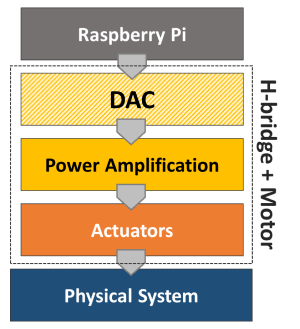
An H-bridge is an electronic circuit that can switch the polarity of the voltage applied to a load. In our case the load is an electric DC motor that is capable of rotating forward and backward. By using a PWM as an input to the system defined by the H-bridge and the motor, we can go from the digital to the analog domain, similarly to what we did with the Raspberry Pi DAC. In this case however, the motor replaces the RC filter and the output is a continuous motor torque/speed instead of a voltage value.

Looking at the bottom half of the diagram introduced in Analog-to-Digital Conversion, the power amplification stage is integrated into the H-bridge and the actuator is the motor. Together they constitute a digital-to-analog converter in a broader sense.

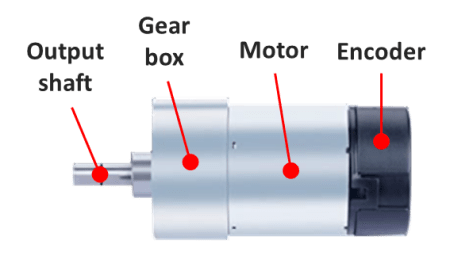
Since the Pi has a limited power output capability, the amplification stage is achieved with an external power supply or a set of batteries that can produce both the higher voltage and current required by a DC motor application. For this post, I’ll use a variable DC power supply set to 12 V and a small DC motor with an integrated encoder. While the encoder won’t be required at this point, it will be used in future posts. And last but not least, there’s the H-bridge, which can be in a single IC chip or part of an IC board. The two types will be considered for some Python code running on a Raspberry Pi 4B.

SN754410 quadruple half-H driver (chip)

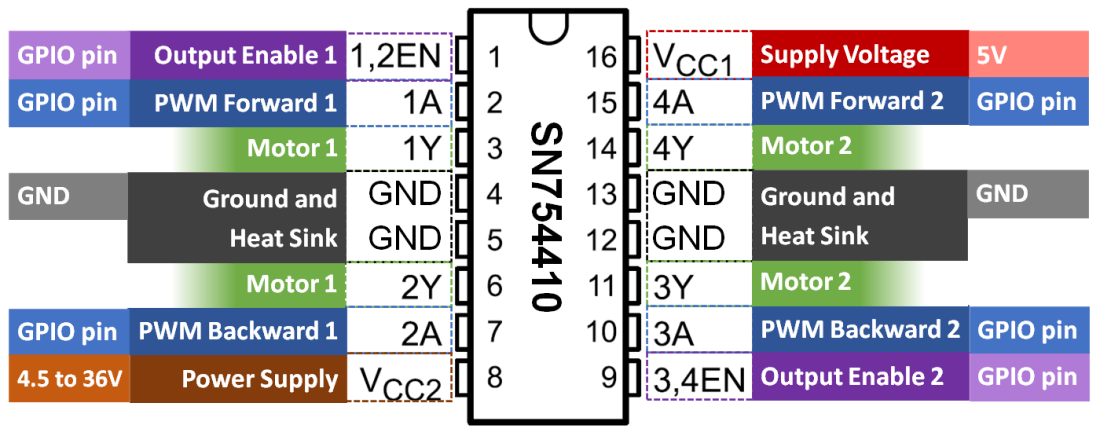
The Texas Instruments SN754410 can be used as 4 half-H drivers or 2 H-bridge drivers, depending on the input configuration. The latter can be used to independently control two DC motors with forward and backward rotation. The figure below shows the pins on the chip and the corresponding GPIO pins on the Raspberry Pi.

For a single motor, in addition to the 5V and GND pins, only 3 GPIO pins are required. Unlike the DAC with RC filters, a much lower PWM frequency can be used for the DC motor. Therefore, any 3 GPIO pins can be chosen since the software-implemented PWM at 100 Hz is sufficient.

The breadboard diagram illustrates the wiring for the DC motor control. For example, the Enable signal can be connected to GPIO16, while PWM Forward and PWM Backward could be connected respectively to GPIO17 and GPIO18. The forward speed of the motor is adjusted through the duty cycle of the PWM Forward signal. Correspondingly, the backward speed uses the PWM Backward signal.

Later on in this post, I will go over a Python Class where the three signals can be used to easily set the motor rotation (in an open-loop fashion for now).

L298 dual H-bridge motor speed controller (board)

Another option is to use an IC board which avoids the need of a breadboard and can therefore be used in a more permanent DIY setup. Most importantly, the reason I chose this particular board is that it has a fundamental difference in how the forward and backward rotation is implemented, when compared to the SN754410 chip.

While the wiring is very similar to the previous setup, by taking a closer look (based on the wiring color scheme), you will notice a different number of Enable and PWM signals. This board has 2 Enable signals and only 1 PWM signal. Rotation direction is now controlled with Enable Forward and Enable Backward, while speed is adjusted with a single PWM duty cycle.

Python Motor Class

Even though GPIO Zero has a Motor Class, the class is not ideal for applications where the motor output speed has to continuously transition between forward and backward rotation direction. The Motor Class implemented in the code below allows for that behavior. Additionally, by coding the class from scratch, we can see how the enable and PWM signals are used, as well as how to accommodate for the two types of wiring setup.

If you have been following along on my blog, in one of my previous posts (VS Code on Raspberry Pi) I encourage the creation of a folder dedicated to your Python modules. With that said, this code should be saved in a module named gpiozero_extended.py alongside utils.py in the /home/pi/python/modules folder on your Raspberry Pi. Also, the fully commented Class can be found on my GitHub page.

from gpiozero import DigitalOutputDevice, PWMOutputDevice


class Motor:

    def __init__(self, enable1=None, enable2=None, pwm1=None, pwm2=None):

        # Identifying motor driver type and assigning appropriate GPIO pins
        if pwm1 and pwm2:
            # Driver with 1 enable and 2 PWM inputs
            # Example: SN754410 quadruple half-H driver chip
            if not enable1:
                raise Exception('"enable1" pin is undefined.')
            self._dualpwm = True
            self._enable1 = DigitalOutputDevice(enable1)
            self._pwm1 = PWMOutputDevice(pwm1)
            self._pwm2 = PWMOutputDevice(pwm2)
        elif enable1 and enable2:
            # Driver with 2 enables and 1 PWM input
            # Example: L298 dual H-bridge motor speed controller board
            if not pwm1:
                raise Exception('"pwm1" pin is undefined.')
            self._dualpwm = False
            self._enable1 = DigitalOutputDevice(enable1)
            self._enable2 = DigitalOutputDevice(enable2)
            self._pwm1 = PWMOutputDevice(pwm1)
        else:
            raise Exception('Pin configuration is incorrect.')
        # Initializing output value
        self._value = 0

    def __del__(self):

        # Releasing GPIO pins
        if self._dualpwm:
            self._enable1.close()
            self._pwm1.close()
            self._pwm2.close()
        else:
            self._enable1.close()
            self._enable2.close()
            self._pwm1.close()

    @property
    def value(self):
        return self._value

    @value.setter
    def value(self, _):
        print('"value" is a read only attribute.')

    def set_output(self, output, brake=False):

        # Limiting output
        if output > 1:
            output = 1
        elif output < -1:
            output = -1
        # Forward rotation
        if output > 0:
            if self._dualpwm:
                self._enable1.on()
                self._pwm1.value = output
                self._pwm2.value = 0
            else:
                self._enable1.on()
                self._enable2.off()
                self._pwm1.value = output
        # Backward rotation
        elif output < 0:
            if self._dualpwm:
                self._enable1.on()
                self._pwm1.value = 0
                self._pwm2.value = -output
            else:
                self._enable1.off()
                self._enable2.on()
                self._pwm1.value = -output
        # Stop motor
        elif output == 0:
            if brake:
                if self._dualpwm:
                    self._enable1.off()
                    self._pwm1.value = 0
                    self._pwm2.value = 0
                else:
                    self._enable1.off()
                    self._enable2.off()
                    self._pwm1.value = 0
            else:
                if self._dualpwm:
                    self._enable1.on()
                    self._pwm1.value = 0
                    self._pwm2.value = 0
                else:
                    self._enable1.on()
                    self._enable2.on()
                    self._pwm1.value = 0
        # Updating output value property
        self._value = output

The following example creates a motor object and runs a sinusoidal excitation with an amplitude of 1 for one full period. If you execute the program, you will notice that the direction of the motor rotation changes as the sign of the sine wave changes.

# Importing modules and classes
import time
import numpy as np
from gpiozero_extended import Motor

# Assigning parameter values
T = 4  # Period of sine wave (s)
u0 = 1  # Motor output amplitude
tstop = 4  # Sine wave duration (s)
tsample = 0.01  # Sampling period for code execution (s)

# Creating motor object using GPIO pins 16, 17, and 18
# (using SN754410 quadruple half-H driver chip)
mymotor = Motor(enable1=16, pwm1=17, pwm2=18)

# Initializing current time stamp and starting clock
tprev = 0
tcurr = 0
tstart = time.perf_counter()

# Running motor sine wave output
print('Running code for', tstop, 'seconds ...')
while tcurr <= tstop:
    # Getting current time (s)
    tcurr = time.perf_counter() - tstart
    # Doing I/O every `tsample` seconds
    if (np.floor(tcurr/tsample) - np.floor(tprev/tsample)) == 1:
        # Assigning motor sinusoidal output using the current time stamp
        mymotor.set_output(u0 * np.sin((2*np.pi/T) * tcurr))
    # Updating previous time value
    tprev = tcurr

print('Done.')
# Stopping motor and releasing GPIO pins
mymotor.set_output(0, brake=True)
del mymotor

DC Motor Remarks

If you’re using a motor with an integrated gear box and try some low output values with the motor object, you’ll notice that there’s a dead band where there’s no speed response as the sign changes around small duty cycle values. That happens because it is the DC motor torque (not the angular velocity) that is proportional to the input current (or very simplistically the PWM duty cycle). For small duty cycle values, the torque is being used to overcome the friction losses in the motor bearings and the gear box before the output shaft starts to turn.

There are several low-budget small DC motors that can be purchased online, usually with a wide range of gear ratios for the same overall packaging constraints. There should be an output shaft speed / torque combination that meets your project requirements. Keep in mind that the SN74410 has a limit of 1 Ampère per driver, which might affect the output that can be achieved. Board controllers are generally rated at much higher currents (5 A and above). The power supply capability should also be taken into account, by the way.

Finally, as I mentioned at the top, a motor with an integrated encoder will become essential if we want to incorporate the angular position of the output shaft into the Motor Class. That will enable closed-loop control of the motor speed and/or angular position, making for a good automation example.

Classes vs. Functions in Python

Classes vs. Functions in Python

Using classes (or more broadly object-oriented programming) can really take your coding to the next level. While they can be a bit confusing at first, some of the things you can do with them would be very difficult, if not impossible, to do using function-based programming. A very good and concise definition of classes in Python can be found in the official documentation, which I’ll literally quote below:

“Classes provide a means of bundling data and functionality together. Creating a new class creates a new type of object, allowing new instances of that type to be made. Each class instance can have attributes attached to it for maintaining its state. Class instances can also have methods (defined by its class) for modifying its state.”

If you’re already using functions in Python, moving to classes is a very feasible step. The approach I will take in this post is to compare a class and a set of functions that do the same thing, i.e., some data fitting. As we go over the comparison, I will also be referencing bits and pieces of the quote above, hopefully making it more clear to understand.

First of all, you will want to bundle data and functionality that actually belong together. With that in mind, using classes will actually make sense in the long run.

The attributes is where the data (or states) are kept inside an instance of the class. Because of the nature of classes, each instance exists in the computer memory completely independent of other instances of the same class. In other words, the attributes (or properties) of each instance can hold different values. All instances still contain the same methods of the class. These are actions that can be performed by a given instance that usually modify the attribute values of that particular instance.

If you use functions on a regular basis and look inside a Python class, you’ll recognize that the methods are basically functions. That set of functions that you created to perform related tasks on your data can all be put inside a class. Besides making your code more modular and self-contained, the fact that you can have multiple instances of the same class can come in really handy, as we’ll see later on. All the code in this post can be found on my GitHub page, as well.

Let’s get started on our data fitting code. The data part is a set of ordered (x, y) pairs that will be used in a linear regression. The functionality part is the set of actions that can be performed on the data. More specifically: defining the data points, fitting a line to them, and plotting the original data points and the line of best fit.

As a general grammatical recommendation, variables (or attributes) are substantives, or groups of substantives, since they contain or define something. Variable names such as figuresize, x_values, numdatapoints are all typical in Python.

Since, functions or methods “do something” with “something”, I always start with a verb and then one or more substantives. So, open_figure, define_data, find_data_points are all valid names. It is a convention in Python to use underscores in function or method names. If you use underscores in your variable names, that verb is all you got to quickly distinguish between attributes (variables) and methods (functions) in your code.

Data Fitting Functions

With that said, let’s check below the three (very simple) functions that will be used. One important aspect is that most functions have input arguments and return values. In this simple example, the functions define_data and fit_data return dictionaries containing the output information. In larger projects, functions may be calling functions, who in turn call more functions. Handling and tracking input and output can become pretty complex. By then, most people resort to global variables. Which, in my opinion, should be avoided at all costs. Having local variables that stay local to their functions will make debugging the code much more straightforward.

import numpy as np
import plotly.graph_objects as go
from scipy.stats import linregress


def define_data(x, y, xname=None, yname=None):
    """
    Creates dictionary containing data information.

    """
    if len(x) == len(y):
        data = {
            'xname': xname,
            'yname': yname,
            'x': x,
            'y': y,
        }
    else:
        raise Exception("'x' and 'y' must have the same length.")
    return data


def fit_data(data):
    """
    Calculates linear regression to data points.

    """
    f = linregress(data['x'], data['y'])
    fit = {
        'slope': f.slope,
        'intercept': f.intercept,
        'r2': f.rvalue**2
    }
    print('Slope = {:1.3f}'.format(fit['slope']))
    print('Intercept = {:1.3f}'.format(fit['intercept']))
    print('R-squared = {:1.3f}'.format(fit['r2']))
    return fit


def plot_data(data, fit):
    """
    Creates scatter plot of data and best fit regression line.

    """
    # Making sure x and y values are numpy arrays
    x = np.array(data['x'])
    y = np.array(data['y'])
    # Creating plotly figure
    fig = go.Figure()
    # Adding data points
    fig.add_trace(
        go.Scatter(
            name='data',
            x=x,
            y=y,
            mode='markers',
            marker=dict(size=10, color='#FF0F0E')
        )
    )
    # Adding regression line
    fig.add_trace(
        go.Scatter(
            name='fit',
            x=x,
            y=fit['slope']*x+fit['intercept'],
            mode='lines',
            line=dict(dash='dot', color='#202020')
        )
    )
    # Adding other figure objects
    fig.update_xaxes(title_text=data['xname'])
    fig.update_yaxes(title_text=data['yname'])
    fig.update_layout(
        paper_bgcolor='#F8F8F8',
        plot_bgcolor='#FFFFFF',
        width=600, height=300,
        margin=dict(l=60, r=30, t=30, b=30),
        showlegend=False)
    fig.show()

Below is a little program that uses the three functions to fit some x, y values. Notice how inputs and outputs have to be passed around between functions. Also, if we want to fit a different set of data points, we start carrying around multiple variables in memory, which can eventually be overwritten or confused with something else. By the way, I’m assuming you saved a file named fitfunctons.py in a modules folder which is either on the Python path or is your current working folder.

from modules.fitfunctions import define_data, fit_data, plot_data

# Defining first data set
x1 = [0, 1, 2, 3, 4]
y1 = [2.1, 2.8, 4.2, 4.9, 5.1]
data1 = define_data(x1, y1, xname='x1', yname='y1')
# Fitting data
fit1 = fit_data(data1)
# Plotting results
plot_data(data1, fit1)

# Defining second data set
x2 = [0, 1, 2, 3, 4]
y2 = [3, 5.1, 6.8, 8.9, 11.2]
data2 = define_data(x2, y2, xname='x2', yname='y2')
# Fitting data
fit2 = fit_data(data2)
# Plotting results
plot_data(data2, fit2)

Data Fitting Class

Now let’s take a look at a class (saved in fitclass.py in the same modules folder) that contains the three functions as methods. As far as naming conventions in Python are concerned, classes use UpperCamelCase. Therefore, our class will be called FitData. In addition to the three functions (now as methods inside the class) there’s a constructor method, which is by convention named __init__. It’s in the constructor that we can initialize attributes, in this case the data and fit dictionaries, as well as call other methods. Notice that the first argument to all methods is self, which will hold the pointer to the class instance once that instance is created, and is how attributes and methods are accessed inside the class.

For instance, by passing only self to the fit_data method, I can access any attribute or method of the class by using the self argument with dot notation. For instance, self.data['x'] gets the x values array anytime I need it inside the class.

On the same token, methods don’t need to have return values (although sometimes you may want them to). They can use the self pointer to store the return values as a class attribute. The method fit_data gets the x, y values from the data attribute and stores the fitting parameters in the fit attribute, such as self.fit['slope'] = f.slope.

import numpy as np
import plotly.graph_objects as go
from scipy.stats import linregress


class FitData:
    def __init__(self):
        """
        Class constructor.

        """
        self.data = dict()
        self.fit = dict()

    def define_data(self, x, y, xname=None, yname=None):
        """
        Creates dictionary containing data information.

        """
        if len(x) == len(y):
            self.data['x'] = x
            self.data['y'] = y
            self.data['xname'] = xname
            self.data['yname'] = yname
        else:
            raise Exception("'x' and 'y' must have the same length.")

    def fit_data(self):
        """
        Calculates linear regression to data points.

        """
        f = linregress(self.data['x'], self.data['y'])
        self.fit['slope'] = f.slope
        self.fit['intercept'] = f.intercept
        self.fit['r2'] = f.rvalue**2
        print('Slope = {:1.3f}'.format(self.fit['slope']))
        print('Intercept = {:1.3f}'.format(self.fit['intercept']))
        print('R-squared = {:1.3f}'.format(self.fit['r2']))

    def plot_data(self):
        """
        Creates scatter plot of data and best fit regression line.

        """
        # Making sure x and y values are numpy arrays
        x = np.array(self.data['x'])
        y = np.array(self.data['y'])
        # Creating plotly figure
        fig = go.Figure()
        # Adding data points
        fig.add_trace(
            go.Scatter(
                name='data',
                x=x,
                y=y,
                mode='markers',
                marker=dict(size=10, color='#FF0F0E')
            )
        )
        # Adding regression line
        fig.add_trace(
            go.Scatter(
                name='fit',
                x=x,
                y=self.fit['slope']*x+self.fit['intercept'],
                mode='lines',
                line=dict(dash='dot', color='#202020')
            )
        )
        # Adding other figure objects
        fig.update_xaxes(title_text=self.data['xname'])
        fig.update_yaxes(title_text=self.data['yname'])
        fig.update_layout(
            paper_bgcolor='#F8F8F8',
            plot_bgcolor='#FFFFFF',
            width=600, height=300,
            margin=dict(l=60, r=30, t=30, b=30),
            showlegend=False
        )
        fig.show()

The program below can be contrasted with the one that employed the functions. We can start by creating two instances of the FitData class, which will be two distinct and independent objects in the computer memory. Each instance now holds the self pointer and can therefore access attributes and call methods using dot notation. fitdata1.plot_data() will run that method with whatever attributes are required and that are already stored in that particular instance. Also, print(fitdata2.data) would display the values assigned to the data attribute in the fitdata2 object.

from modules.fitclass import FitData

# Creating class instances
fitdata1 = FitData()
fitdata2 = FitData()

# Defining first data set
x1 = [0, 1, 2, 3, 4]
y1 = [2.1, 2.8, 4.2, 4.9, 5.1]
fitdata1.define_data(x1, y1, xname='x1', yname='y1')
# Fitting data
fitdata1.fit_data()
# Plotting results
fitdata1.plot_data()

# Defining second data set
x2 = [0, 1, 2, 3, 4]
y2 = [3, 5.1, 6.8, 8.9, 11.2]
fitdata2.define_data(x2, y2, xname='x2', yname='y2')
# Fitting data
fitdata2.fit_data()
# Plotting results
fitdata2.plot_data()

You should also observe that all the variables that were being passed around are now incapsulated inside each object, making for code that is more organized and less prone to errors. Of course, these examples are quite simple and keeping track of what’s going on is still pretty straightforward.

Finally, similar to functions, methods can call methods. But since input arguments and return values can all be stored inside the class attributes, nesting method calls becomes much cleaner and easier to do than nesting function calls.

Random Remarks

I was first exposed to Object-Oriented Programming a little over 6 years ago, when I was playing around with a LEGO EV3 Mindstorms. It was in MATLAB, which was my programming language of many, many years. It took me some time to wrap my head around the concept, but once I understood its power, a whole new dimension of programming opened up! I then took to write the code for an entire engine test cell automation system: GUIs, instrumentation interfaces, and everything in between. The level of complexity and modularization that was required in order to succeed was only achievable through the use of classes.

Speaking of GUIs, those are built upon the concept of classes. If you ever venture down that path, there’s another strong reason to learn more and start using them. Once you get it, you’ll never look back.

VS Code on Raspberry Pi

VS Code on Raspberry Pi

When it comes to a Python IDE (Integrated Development Environment) for the Pi, if you want to code like a pro, I would definitely go with Visual Studio Code. It’s free, open source, and runs on pretty much any platform. And no, I’m not getting any kickbacks from Microsoft. While the Raspberry Pi OS installation comes with a couple of IDE options, you will have a more pleasant (and efficient) programming experience if you use VS Code.

Before I go about the installation steps and some useful extensions that can be added, let me first mention two things that I believe can really make a difference for programming in Python: 1) A highly customizable interface that has the same look across different platforms; 2) You can have the editor, the terminal window, AND an interactive Python session all in a single interface. Even more than one instance of each, if that’s the case.

Installing VS Code

First of all, I strongly recommend keeping the default pi username that comes with the Raspberry Pi OS. It has the correct level of administrator privileges and will help keep things communized as we move forward. With that said, open a terminal window on your Pi and run the following commands to make sure the installation is current and to install VS Code:

pi@raspberrypi:~ $ sudo apt update

pi@raspberrypi:~ $ sudo apt install code

That’s pretty much it! But let’s add a few features to make life easier. VS Code allows for a multitude of extensions to be installed. In our case, Python IntelliSense (auto-completion, syntax checking, code formatting) and Jupyter notebook (interactive session, graph renderers) are really useful and should be installed next.

Let’s open VS Code and go to the Extensions Marketplace, as shown in below, and type python in the search bar. Several extensions will show up. Select the Python (Pylance) extension and and install it.

Then type jupyter in the search bar and install the Jupyter Notebook Renderers extension . Sometimes it’s installed automatically when you install the previous extension.
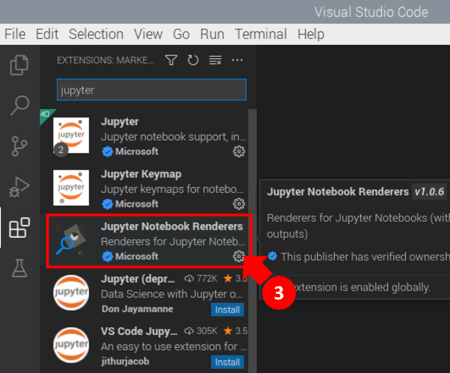
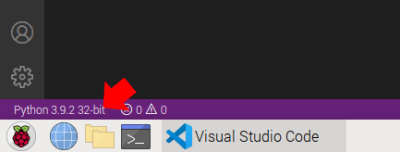
At this point you should be able to see the Python interpreter automatically selected based on the version installed on your Raspberry Pi.

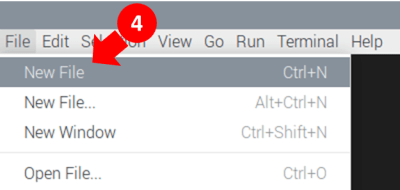
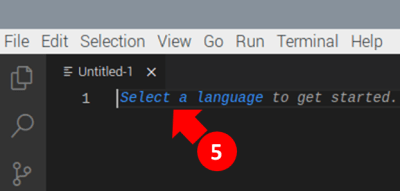
Let’s create our first program in VS Code, which will help understand the layout a bit more and install some additional requirements. As shown next, create a new file from the menu and then select Python as the programming language.

Create a simple program, such as a variation of the famous print('Hello World!'), then right-click anywhere in the editor and select the menu option Run Current File in Interactive Window. That will trigger the installation of the missing piece (ipykernel) required to run interactively.

Accept the prompts that may appear in the lower right corner and/or the main window and wait as the installation opens a new terminal window in VS Code.

Once the installation finishes, the interactive session should be fully enabled and your screen should look somewhat like the one below. You can also type commands in the box at the bottom of the interactive window and execute them by pressing SHIFT + ENTER. For those familiar with MATLAB, the interactive window is very similar to the MATLAB Workspace. You can run bits and pieces of code, try individual commands, and manually inspect variables, among other things.

Installing Plotly

The next step is to install Plotly so we can make some graphs in the interactive window. By the way, I couldn’t find an easy way to have Matplotlib graphs show up in the interactive session in the Raspberry Pi Unix… Besides that, the graphs in Plotly are quite interactive, which is a nice feature to have. So, let’s open a terminal window in VS Code, as shown below:

In the new terminal, do a pip install for Plotly. As you probably realized by now, Python packages can by installed from inside VS Code, without the need to run sudo apt install commands from the standard external Pi terminal.

Finally, for things to work as expected, in the same terminal window, run a pip install for nbformat, a Plotly requirement.

At this point, close and restart VS Code for all the changes to take effect.

Numpy and Personal Preferences

To run some of the examples throughout my blog you will need to install a different version of numpy than the one that comes installed with the Raspberry Pi OS. While it doesn’t replace the original version, the new package will end up installed in the local python site-packages folder, more specifically: /home/pi/.local/lib/python3.9/site-packages. Which version of numpy to choose may be dependent on the Python version that’s running on the Pi. In my case, I run the following command at the VS Code terminal:

python3 -m pip install numpy==1.22

After doing that, numerical library issues will come up, which can be resolved by installing in a Pi terminal:

pi@raspberrypi:~ $ sudo apt-get install libatlas-base-dev

And since you’re at it, you might as well install a useful engineering package (through the VS Code terminal):

python3 -m pip install scipy

I also like to create a folder structure that will explicitly have a modules folder, which will be the location for any Python modules that I create.

That will work well if you use this VS Code settings.json file. It already has the correct folder names and a few more settings for how VS Code should look. You can copy it’s content from my GitHub page and place a file with the exact same name in home/pi/.config/Code/User. The current file in that folder should be empty if you just installed VS Code. In case it isn’t, you may want to save a copy of it with before replacing it with the new one. Open the new file with, yes, VS Code and make sure the Python folder matches the one on your Pi OS installation.

You can also get the keybindings.json file from the GitHub page and place it in the same folder. It allows you to open an interactive session window by pressing ALT+SHIFT+J , as well as to automatically run selected code from the editor in the interactive window by pressing SHIFT + ENTER .

Now it’s a good time to get the plotting function from my post A useful Python plotting module, that I use quite often in the examples, and place it in the correct location with the correct name. Just copy the code from the post and paste it in a new Python file in the VS Code editor. Then save it as utils.py in /home/pi/python/modules/ folder. If you inspect the settings.json file you’ll see that the modules folder is already added to the Python path and it’s content can be imported without any problems.

You can even run the example by selecting the code an hitting SHIFT + ENTER to have it execute in the interactive window. Give it a try!

DAC with Raspberry Pi

DAC with Raspberry Pi

Let’s put some of the concepts from the Digital-to-Analog Conversion post to work with a Raspberry Pi. To get the most out of it, you will need a few resistors and capacitors, as well as an MCP3008. The former will be used to build the low-pass analog filters, while the latter will be used to measure the DAC output. As a general guideline, you don’t want to generate and measure a signal on the same DAQ device, since all sorts of extraneous loops and noise could potentially show up. But because we’re not doing any instrumentation-critical work, we won’t be following that guideline.

The figure shows the layout of the components on a breadboard. The MCP3008 wires will use the same pins that were used in the MCP3008 with Raspberry Pi.

The PWM wire should be connected to GPIO12, which is one of the hardware-implemented PWMs on the Pi (GPIO13, 18, and 19 also have hardware PWM). As a side note, the software-implemented PWM is good for 100 to 200 Hz. The PWM period starts to fall apart above 500 Hz. The hardware PWM can go up to 8 kHz! However, that would be an overkill for our application and we will settle down for a lower value, as shown later on.

It’s also possible to identify on the board two cascaded low-pass RC filters, whose output is connected to pin 1 on the MCP3008 (channel 0 on the GPIO Zero MCP3008 class).

Let’s aim for a step response time (τ) of 0.01 s for our filters. We can then use the formula τ = RC to determine the RC product and choose suitable R and C values. In our case, we should select R = 1 kΩ and C = 10 μF. When putting everything together, make sure the negative side of the capacitors are connected to ground!

The following Python code (mostly derived from the example in Prescribed PWM duty cycle) will run a sequence of PWM duty cycle steps that can be used to better understand the DAC output. Check the list of comments below before digging into the code.

  • Even though the hardware PWM can go up to 8 kHz, it seemed reasonable to use 700 Hz for it. Change this number to lower values (such as 50 Hz) to see the impact on the signal ripple.
  • Both the PWM values as well as the ADC measurements are normalized between 0 and 1 in GPIO Zero. Therefore, they are scaled throughout the code to Vref = 3.3 V.
  • The PWM duty cycle output steps (that correspond to a DAC output) span the entire range. However, the 0 and 1 values are omitted. That’s because they fully bypass the PWM, applying respectively a constant 0 and Vref to the output.
  • Even though the sampling rate of the hardware-based ADC can go up to 6.25 kSamples/s, the signals are sampled at a rate of 500 Samples/s. That’s sufficient for visualization and provides plenty of margin in the execution loop.
import time
import numpy as np
from utils import plot_line
from gpiozero import PWMOutputDevice, MCP3008

# Assigning parameter values
pwmfreq = 700 # PWM frequency (Hz)
pwmvalue = [0.05, 0.2, 0.4, 0.6, 0.8, 0.95, 0.9, 0.7, 0.5, 0.3, 0.1]
tsample = 0.002 # Sampling period for data acquisition (s)
tstep = 0.5 # Interval between PWM output step changes (s)
tstop = tstep * len(pwmvalue) # Total execution time (s)
vref = 3.3  # Reference voltage for the PWM and MCP3008

# Preallocating output arrays for plotting
t = []  # Time (s)
dacvalue = []  # Desired DAC output
adcvalue = []  # Measured DAC output

# Creating DAC PWM and ADC channel (using hardware implementations)
dac0 = PWMOutputDevice(12, frequency=pwmfreq)
adc0 = MCP3008(channel=0, clock_pin=11, mosi_pin=10, miso_pin=9, select_pin=8)

# Initializing timers and starting main clock
tprev = 0
tcurr = 0
tstart = time.perf_counter()

# Initializing other variables used in the loop
count = 1  # PWM step counter
dacvaluecurr = pwmvalue[0]  # Initial DAC output value
dac0.value = dacvaluecurr  # Sending initial value to GPIO pin

# Running execution loop
print('Running code for', tstop, 'seconds ...')
while tcurr <= tstop:
    # Updating PWM output every `tstep` seconds
    # with values from prescribed sequence
    if (np.floor(tcurr/tstep) - np.floor(tprev/tstep)) == 1:
        dacvaluecurr = pwmvalue[count]
        dac0.value = dacvaluecurr
        count += 1
    # Acquiring digital data every `tsample` seconds
    # and appending values to output arrays
    # (values are converted from normalized to 0 to Vref)
    if (np.floor(tcurr/tsample) - np.floor(tprev/tsample)) == 1:
        t.append(tcurr)
        dacvalue.append(vref*dacvaluecurr)
        adcvalue.append(vref*adc0.value)
    # Updating previous time and getting new current time (s)
    tprev = tcurr
    tcurr = time.perf_counter() - tstart

print('Done.')
# Releasing pins
dac0.value = 0
dac0.close()
adc0.close()

# Plotting results
plot_line([t]*2, [dacvalue, adcvalue], yname='DAC Output (V)')
plot_line(t[1::], 1000*np.diff(t), yname='Sampling Period (ms)')

The plots show the output generated using plot_line from the utils.py module. Make sure you have a copy of it that can be imported. Observing the DAC response, it’s possible to notice that for lower PWM duty cycles the stead-state value is higher than the set point. Conversely, a higher duty cycle produces a steady-state value lower than the set point. Later on, we’ll see that it is possible to calibrate the DAC output so a one-to-one relationship can be obtained. It’s also a good practice to plot the actual sampling period that the execution loop is running on. Just to make sure it can keep up.

Output Ripple and Step Response

The next figures show the step response of our Pi DAC for a PWM duty cycle change from 25 to 75 % (0.825 to 2,457 V), respectively for PWM frequencies of 50 and 700 Hz.

For the 50 Hz PWM, the ripple in the output is quite significant and can be easily identified. We can also see that there’s no offset between the desired and the actual steady-state DAC output signals. In the other hand, for the 700 Hz PWM, the ripple in the output is much smaller and isn’t related to the PWM frequency. Unlike the lower frequency case, there’s now an offset between desired and actual outputs.

That offset is mostly caused by the transitions from low-to-high (and vice-versa) in the PWM signal. Because they’re not instantaneous (think of them as very steep ramps instead), the PWM signal going into the low-pass filter will assume values other than low (0V) and high (Vref). These intermediate values become more relevant the higher the frequency is. Interestingly enough, the offset will be zero at 50% duty cycle, regardless of fPWM.

The response time is not affected by the PWM frequency. The theoretical value of 0.02 s (for the combined cascaded low-pass filters used in this example) wasn’t observed on the actual signal. The higher response time of 0.05 s is due in part to the PWM not being a perfectly “square” wave form. One should also speculate other delays in the Raspberry Pi hardware itself, as well as the effect of input/output impedances.

DAC Calibration

The relationship between the set point and the actual analog output values is quite linear and can be determined with the help of a modified version of the Python code above, which also performs a linear regression on the collected data. The code stores (and averages) analog output data for the steady-state portion of every step of the input sequence. The data points are then used in a linear regression to determine the transfer function between desired and actual analog output values. The graphs below show the linear regression and the calibrated output. Check out the code on my GitHub repository for more details.

Final Remarks

While most instrumentation and DAQs these days don’t require analog inputs to do what they’re supposed to do, some of the older pieces of equipment out there still do. Op Amps can be used to expand the output voltage range of our simple Pi DAC to a more common 0 to 5 V.

In this post, I create a DAC class that can be used like any other GPIO Zero class (such as PWMOutputDevice or MCP3008) making it much easier to work with the code. The exercise of building the class also comes in handy as we explore more efficient ways to write DAQ software in Python.